How to remove ransomware: a safe action plan
If you need to understand how to remove ransomware, act calmly and in order: first isolate the device, then save the evidence, check the system with a reliable antivirus, and only after that proceed to file recovery. Ransomware blocks access to data and demands a ransom, but deleting the malware does not always decrypt the documents. Therefore, the main goal is to stop the spread, not worsen the situation, and choose a safe method of recovery.

What is ransomware and why is it dangerous
Ransomware is a type of malware that encrypts files on a computer, server, external drive, or in a network folder. After encryption, the user sees a ransom note. Sometimes file extensions change, a timer appears, and the desktop is replaced with a message from the attackers.
Such attacks are dangerous for several reasons:
- Files become inaccessible. Documents, photos, databases, and archives can only be opened after decryption.
- Ransomware can spread across the network. If the computer is connected to a shared folder or corporate domain, the risk is higher.
- Some variants steal data. Modern ransomware groups often copy information first and then encrypt it.
- Paying the ransom does not guarantee anything. Criminals may not send a key, send a non-working tool, or demand money again.
It is important to understand: removing the virus and recovering files are different tasks. An antivirus can remove the active threat, but encrypted files usually remain encrypted. Therefore, do not delete everything indiscriminately and do not format the disk until you assess recovery options.
First actions after infection
The first minutes after discovering ransomware are critically important. Your task is to stop the spread and preserve as much data as possible for analysis.
| Step | What to do | Why it is necessary |
|---|---|---|
| 1 | Disconnect the internet and network | To prevent the virus from transmitting data and infecting other devices |
| 2 | Do not turn off the computer unnecessarily | Sometimes keys or important traces of the attack remain in memory |
| 3 | Disconnect external drives | To prevent ransomware from damaging backups |
| 4 | Photograph the ransom note | This will help identify the type of ransomware |
| 5 | Do not pay immediately | Payment does not guarantee recovery and supports criminals |
| 6 | Check other devices | Need to understand the scale of the infection |
If encryption is ongoing right now and files are changing quickly, disconnecting power should only be done as a last resort. For example, if there is no way to quickly unplug the network cable or turn off Wi-Fi. In normal situations, it is better to isolate the computer from the network first to avoid losing data in RAM.
How to remove ransomware step by step
Below is a practical plan for home computers and small offices. If a server, accounting database, Active Directory domain, or several workstations are infected, it is best to involve a cybersecurity specialist immediately.
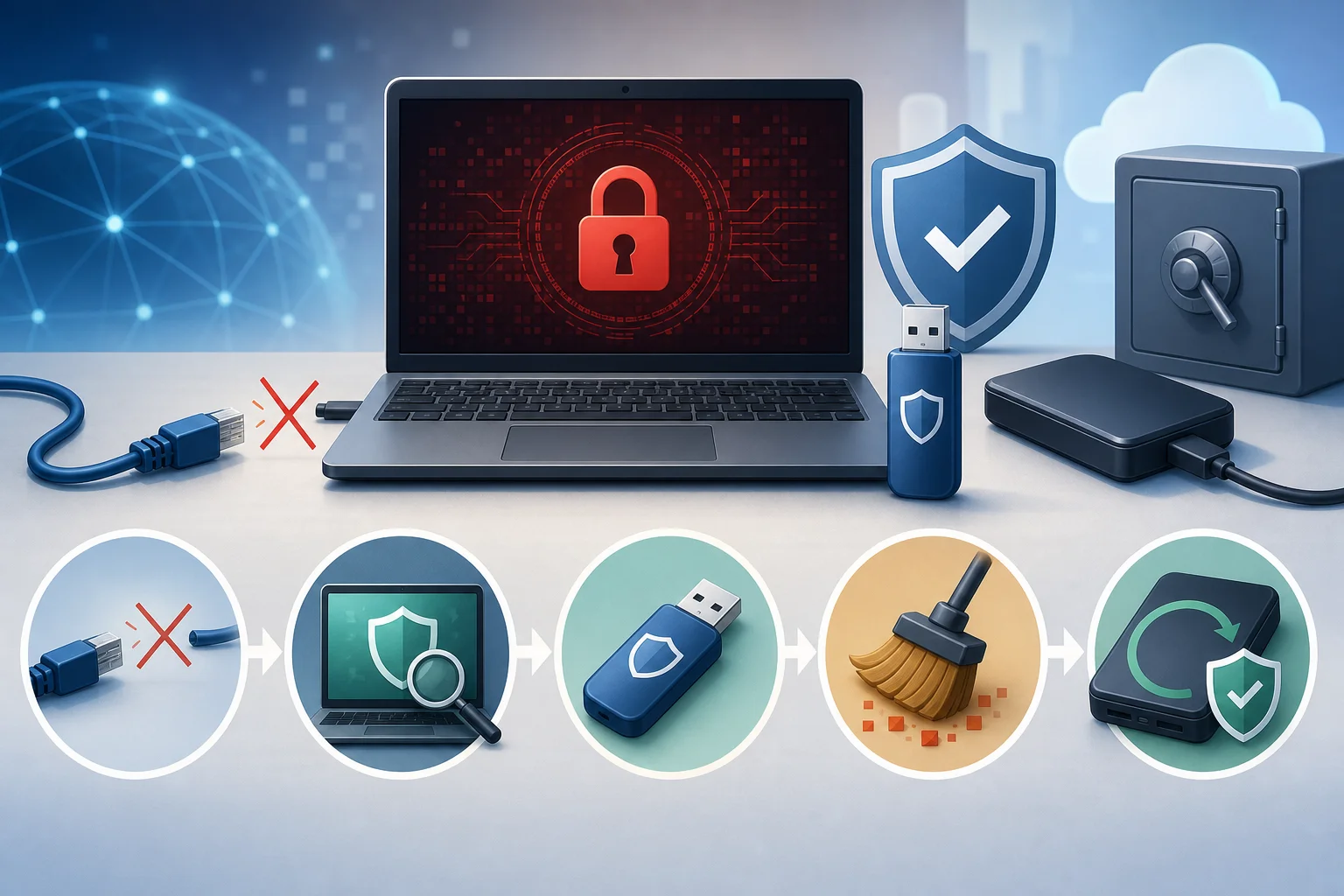
1. Isolate the infected device
Immediately disconnect the computer from the network:
- Unplug the Ethernet network cable.
- Turn off Wi-Fi using the hardware button, system settings, or router.
- Disable Bluetooth if storage devices are connected through it.
- Disconnect external drives, USB flash drives, and memory cards.
- Do not connect the phone as a drive.
If the computer is in an office, warn colleagues. Do not open shared network folders from other devices. Temporarily disable NAS network storage if there is suspicion that ransomware has accessed it.
2. Document signs of infection
Before removing the malware, save information that may be useful for identifying the ransomware family:
- the name of the ransom note;
- the text of the message or a screenshot;
- new file extensions;
- email addresses, Telegram accounts, or websites of the attackers;
- a sample encrypted file that does not contain confidential data;
- the date and approximate time when the attack started.
Do not send personal documents to attackers. For analysis, the ransom note and a small encrypted file without sensitive information are usually sufficient.
3. Check if encryption is still ongoing
Open folders with recently changed files and see if new encrypted copies are appearing. Also, pay attention to CPU and disk usage in the task manager.
If activity continues, do not open documents, archives, or unknown programs. Do not try to manually terminate random processes unless you are sure of their purpose. A mistake could lead to data loss or disrupt system operation.
4. Boot into safe mode or from a recovery drive
To remove ransomware, it is better to use an environment where the malware process does not start automatically.
In Windows, you can try safe mode:
- Open recovery options.
- Go to the section of special boot options.
- Choose to restart with additional parameters.
- Start safe mode without networking, if the internet is not needed.
- If you need to update the antivirus, use safe mode with networking, but only after isolating the local network.
An even safer approach is to use a bootable antivirus drive. This is a flash drive or disk with a separate checking environment that needs to be prepared on a clean computer, then boot the infected device from this drive and scan the disks.
5. Perform a full antivirus check
Use a well-known and updated antivirus. Built-in Windows protection tools, corporate EDR, or scanning utilities from reputable vendors will all work. The main thing is to download tools only from official websites.
Recommended order:
- Update antivirus databases on a clean device or in an isolated environment.
- Run a full scan on all local disks.
- Check external drives separately but do not open any files on them.
- Send detected threats to quarantine if the antivirus offers this option.
- Save the scanning report.
- Repeat the check with another reliable scanner if there are doubts.
Do not install multiple antivirus programs with permanent protection at once. They may conflict with each other. For a second check, it is better to use a portable scanner or bootable media.
6. Remove suspicious programs and auto-start items
After the main check, it is worth reviewing what was launched along with the system. Ransomware often enters through a malicious attachment, a pirated activator, a fake update, a macro in a document, or remote access with a weak password.
Check:
- recently installed programs;
- auto-start items;
- task scheduler;
- browser extensions;
- unknown services;
- download folders and temporary directories;
- remote access tools that you did not install.
If you are not sure, do not manually delete system components. It is better to send the file for antivirus checking or consult a specialist. Incorrect removal can complicate recovery.
7. Change passwords from a clean device
If the ransomware was in the system, do not rule out the theft of passwords. Change credentials only from a device that is definitely not infected.
First, change passwords for:
- email accounts;
- cloud storage;
- banking and payment services;
- Microsoft, Google, or Apple accounts;
- corporate VPN and remote desktop;
- admin panels for websites, CRM, and accounting systems;
- router and NAS.
Also enable two-factor authentication wherever possible. If shared passwords are used in the company, they need to be changed immediately.
8. Check backups before recovery
Do not connect the backup drive to the infected system. First, ensure that the virus is removed, and then check the backups on a separate clean computer or in an isolated environment.
A good backup should be:
- created before the infection;
- physically or logically separated from the main computer;
- read-only or protected from modification;
- checked for file opening;
- free of malicious executable files.
If the backup is stored in the cloud, use version history. Many cloud services allow you to roll back files to a state prior to mass encryption. However, version retention periods differ, so it is better to act quickly.
9. Recover files safely
After removing the ransomware, proceed to data recovery. Possible options:
- Backup. The most reliable method if the copy was not encrypted.
- Cloud version history. Suitable for files synchronized with a cloud service.
- Windows shadow copies. Sometimes they help, but many ransomware types delete them.
- Official decryptor. Possible if a key has been found for a specific ransomware family or a flaw in the encryption implementation has been discovered.
- Recovery of deleted files. Sometimes the malware creates an encrypted copy and deletes the original. In this case, recovery utilities may help, but there are no guarantees.
Do not rename mass encrypted files and do not run unknown decryptors. Keep the original encrypted files intact. If a working tool appears later, they may be needed.
10. Reinstall the system if there is no trust
Even after successfully removing ransomware, there may still be a risk of hidden access. If the infection was serious, it is wiser to completely reinstall the system.
Before reinstalling:
- save only necessary user files;
- do not transfer suspicious programs;
- do not copy executable files from the old system without checking;
- save antivirus reports and the ransom note;
- prepare an installation media from the official website;
- check backups.
After installation, immediately update the system, drivers, browser, and office applications. Then enable protection, set up backups, and only after that restore data.
Is it possible to decrypt files after ransomware
Sometimes decryption is possible. But it depends on the specific type of ransomware, the quality of its implementation, and the availability of keys. Modern ransomware often uses strong encryption. In such cases, finding the key is practically impossible.
To check the chance of decryption:
- Identify the ransomware family by file extension and the text of the ransom note.
- Use known ransomware identification services.
- Look for decryptors only on the websites of reputable antivirus companies and specialized projects.
- Compare the tool's requirements with your situation.
- Make a copy of the encrypted files before running any decryptor.
If the decryptor asks to disable protection, pay for “activation”, or download an unknown executable file from a forum, it poses a high risk. Under the guise of assistance, new malware programs are often spread.
Is it worth paying the ransom?
Paying the ransom is not recommended. The reasons are simple:
- there is no guarantee that the criminals will send a working key;
- the key might only recover part of the files;
- after payment, you may be attacked again;
- the money supports criminal infrastructure;
- in some cases, payment may violate sanctions or legal restrictions.
However, there are situations when an organization considers all options due to critical data. In such cases, the decision should be made with lawyers, management, security specialists, and, if necessary, law enforcement. For home users, it is safer to focus on removing the threat, backups, and trusted decryptors.
Features of removal in a corporate network
If ransomware enters a company, actions need to be broader than just addressing one computer. Often, the infection starts from a phishing email, a stolen VPN password, a vulnerable RDP, or a compromised admin account.
In the case of a corporate incident:
- disconnect infected nodes from the network;
- temporarily limit access to shared folders;
- check domain controllers and backup servers;
- preserve event logs, EDR, and network device logs;
- block suspicious accounts;
- change passwords for privileged users;
- review firewall and VPN rules;
- notify responsible persons within the company;
- do not restore servers until the entry point is closed.
The biggest mistake is quickly restoring data from a backup but leaving the same vulnerability. In this case, the ransomware can return.
How to tell if the ransomware has been removed
Achieving complete certainty without analyzing the incident is difficult, but there are signs that the active threat has been stopped:
- new files are no longer being encrypted;
- antivirus does not find active malicious processes;
- auto-start has been cleared of suspicious items;
- unknown accounts are deleted or blocked;
- network connections to suspicious addresses are absent;
- the system is updated;
- passwords are changed;
- backups are checked;
- a repeated scan does not reveal threats.
If the computer holds important data, it is better not to rely only on signs. Perform a clean reinstall. This is faster and more reliable than searching for every possible “backdoor” manually.
Typical mistakes when removing ransomware
Mistakes can reduce the chance of recovery. Avoid the following actions:
- Do not format the disk immediately. First, assess the possibility of decryption and recovery.
- Do not delete the ransom note. It helps to identify the type of ransomware.
- Do not run random decryptors. They may be malicious.
- Do not connect backup to an infected system. Otherwise, the copy may be affected too.
- Do not reinstall the system without preserving important traces. For a company, this may hinder the investigation.
- Do not use old passwords. They may have been stolen.
- Do not open encrypted files with unknown programs. It will not speed up recovery.
The less chaotic your actions are, the higher the chance of safely recovering data.
How to protect against reinfection
After removing ransomware, it is important to close the loopholes that made the infection possible. Otherwise, the situation may repeat.
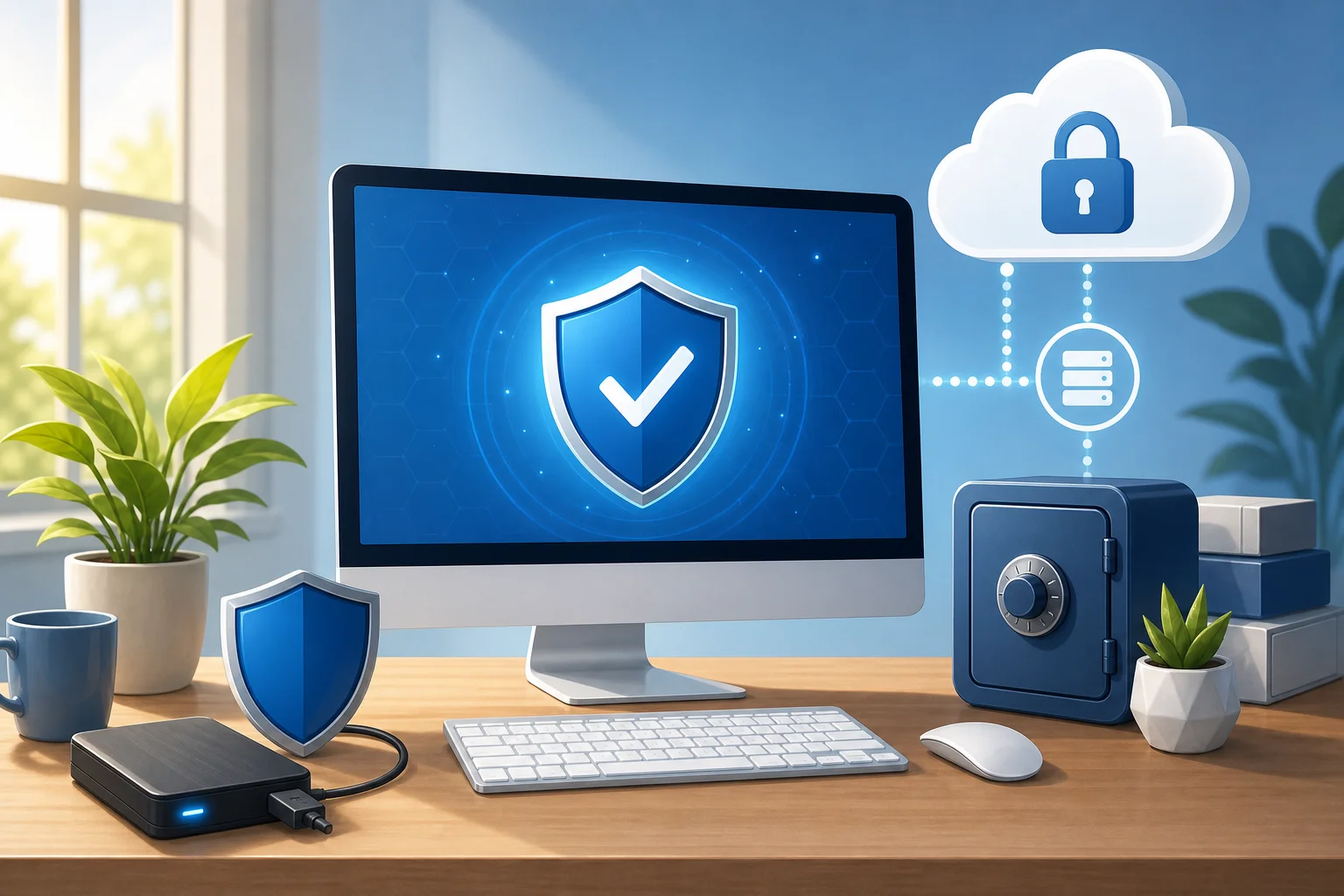
Set up backups according to the 3-2-1 rule
The 3-2-1 rule means:
- 3 copies of data;
- 2 different types of media;
- 1 copy off-site or off the main device.
For example, working files are stored on a computer, copied to an external drive, and additionally to the cloud with version history. The external drive should not be connected all the time. Otherwise, ransomware can encrypt it too.
Keep the system and programs updated
Vulnerabilities in Windows, browsers, office suites, archivers, and remote access tools are often used for attacks. Enable automatic updates. Remove programs that you do not use. Pay special attention to outdated versions of Java, Flash-like components, old VPN clients, and obsolete plugins.
Secure remote access
If RDP, VPN, or remote administration is used:
- disable internet access when not necessary;
- use VPN with multi-factor authentication;
- restrict access by IP addresses;
- prohibit weak passwords;
- enable lockout after several unsuccessful attempts;
- check login logs.
Open RDP with a weak password is one of the common entry points into small companies.
Educate users to recognize phishing
Ransomware often arrives through an email with an attachment: an invoice, a deed, a resume, a delivery notification, or an archive with a password. Signs of risk include:
- the sender is unknown;
- the email urges to open a file urgently;
- the attachment has an extension of .exe, .js, .vbs, .scr, or a double extension;
- the document requests enabling macros;
- the link goes to a suspicious domain;
- the text looks like a machine translation.
The best rule: if a file arrives unexpectedly via email, first verify with the sender through another channel.
Use protection against changes to important folders
Windows has features that limit unauthorized application access to protected folders. Many antivirus programs can also track mass file changes. Enable such capabilities if available, and add exceptions only for trusted programs.
Quick reference guide for print
If you need to quickly orient yourself, use this checklist:
- Disconnect the internet, Wi-Fi, and network cable.
- Unplug external drives and USB sticks.
- Photograph the ransom note and file extensions.
- Do not pay or run unknown decryptors.
- Boot into safe mode or from an antivirus flash drive.
- Conduct a full scan and remove threats.
- Change passwords from a clean device.
- Check backups separately.
- Recover files from backup, cloud, or official decryptor.
- Update the system and set up protection against re-attack.
Frequently asked questions about ransomware
Can ransomware be removed without data loss?
The malware can often be removed, but that does not mean an automatic recovery of files. If the data has already been encrypted, you need a backup, an official decryptor, or another recovery method. So first, stop the threat, then work with data copies.
Does renaming encrypted files help?
Usually no. The extension is just an external marker. The content of the file has already been cryptographically changed. Renaming can even hinder the automatic recognition of the type of ransomware. It is better to keep the original names and make a copy before experimenting.
Can Windows System Restore be used?
Sometimes System Restore helps revert settings, but it rarely decrypts user files. Moreover, many ransomware types delete restore points and shadow copies. Use this method cautiously and only after removing the active threat.
What to do if files on an external drive are encrypted?
Immediately disconnect the drive and do not connect it to an infected computer. Check it on a clean system with updated antivirus. If there is a backup of the drive, work with the copy rather than the original. Do not run files from the drive until it has been checked.
How to identify the name of the ransomware?
Look at the extension of the encrypted files, the name of the ransom note, and the text of the message. Then use reliable ransomware identification services or antivirus company websites. Do not publish confidential documents in public.
Should you contact the police?
If the damage is significant or personal data, business systems, or financial information are involved, it makes sense to contact law enforcement. For organizations, this may be a mandatory part of incident response procedures. Also, save logs and evidence.
Can you continue using the computer after removal?
For a simple home case - yes, if the check is clean, the system is updated, passwords are changed, and files are restored from a safe source. But if credentials were stolen, network folders infected, or there are doubts, it is better to fully reinstall the system.
Conclusion
To remove ransomware and not worsen the situation, act according to the plan: isolate the device, save signs of the attack, check the system with a reliable antivirus, change passwords, and recover files only from trusted sources. Do not connect backups to an infected computer and do not run random decryptors. If data is important or the infection affected the network, consult specialists—swift and careful actions increase the chances of safe recovery.