How to protect yourself from ransomware: complete guide
How to protect yourself from ransomware is a question better resolved before the first attack. Ransomware blocks access to files and demands a ransom for the decryption key. In this article, we’ll discuss how to reduce the risk of infection, what settings to enable in Windows, macOS, Linux, and cloud services, how to organize backups, train employees, and what to do if an infection has already occurred.
Ransomware viruses are dangerous not only for large companies. A home laptop, family photo archive, small business customer database, accounting, NAS storage, and shared department drive can all become targets. Protection is built not on just one antivirus but on a combination of habits, settings, backups, and response plans.
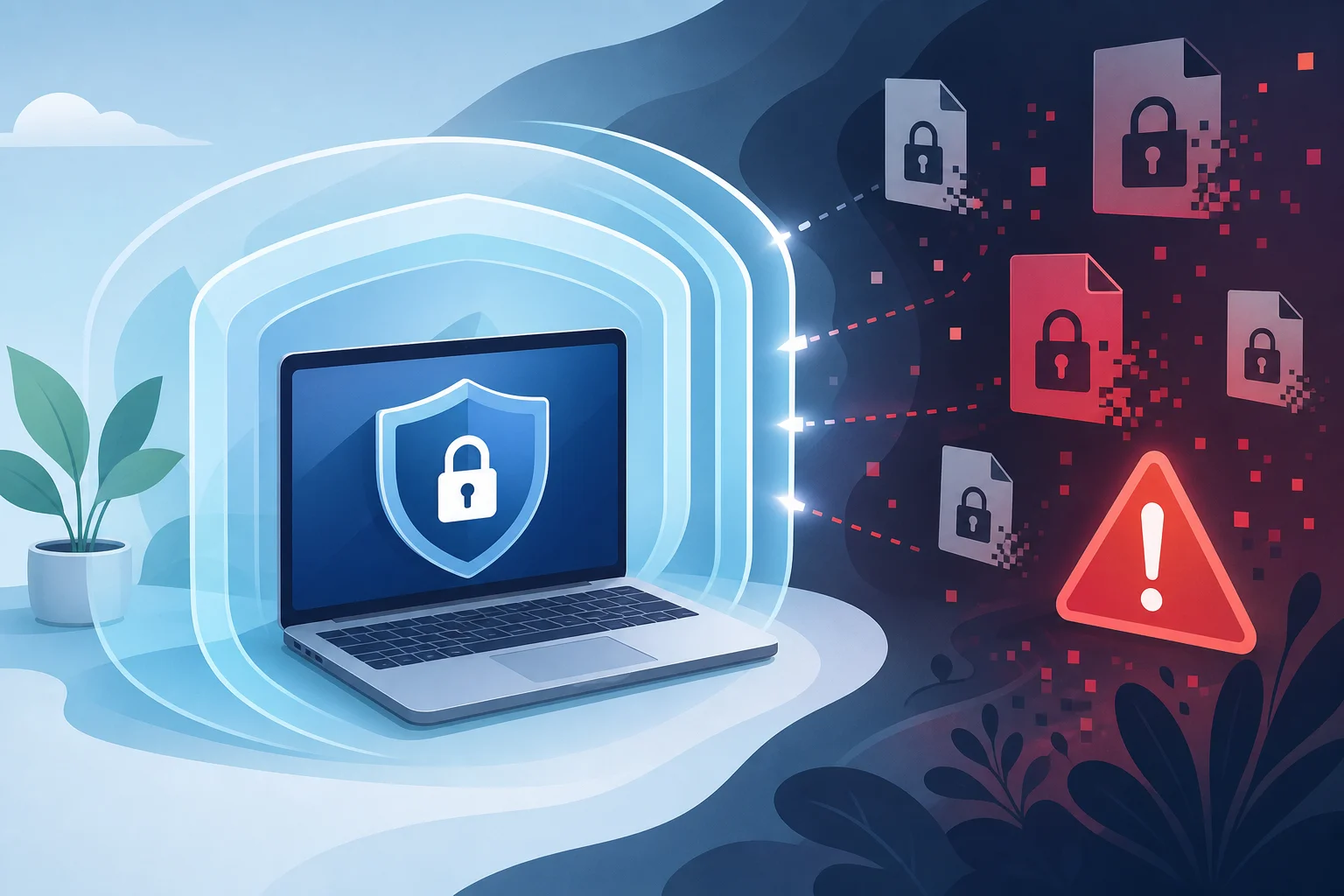
What is ransomware and how does it work
Ransomware is a malicious program that finds files on a device or in available network folders, encrypts them, and leaves a message demanding a ransom. Often, attackers promise to send a key after payment. In practice, there are no guarantees: the key may not arrive, may not work, and the money may fund new attacks.
A typical attack goes through several stages:
- The attacker gains initial access. This can be a phishing email, infected attachment, cracked password, vulnerable RDP, malicious advertisement, or pirated software.
- Malicious code establishes itself in the system. Sometimes it disables protection, deletes shadow copies, and searches for network resources.
- The ransomware selects data. It most often targets documents, spreadsheets, archives, photos, databases, and backups if they are available as regular folders.
- The files are encrypted. Extensions may change, and a note with payment instructions appears on the desktop.
- Sometimes data is preemptively stolen. Attackers then threaten to publish it, even if the victim has backups.
The main conclusion is simple: ransomware protection must hinder the attack at every stage. Entrance must be complicated, spread must be limited, clean copies of data must be preserved, and an action plan must be prepared in advance.
Main ways ransomware can infect
To understand how to protect against ransomware, it's important to know the most common scenarios. They change, but the basic techniques remain similar.
Phishing emails and attachments
An email may look like an invoice, act, bank notification, delivery message, resume, or document from a partner. Inside, there might be an attachment with macros, a link to a fake site, or an archive with an executable file. Sometimes the text creates urgency: pay today, open immediately, check your debt.
Danger signs include:
- an unexpected file from an unknown sender;
- an archive with a password stated in the email;
- a request to enable macros in the document;
- a link with a similar but not exact domain;
- strange style, mistakes, or pressure on deadlines.
Remote access breaches
RDP, VPN portals, admin panels, SSH, or remote desktops often become entry points. The risk is higher if a weak password is used, there is no MFA, the service is open to the internet, and updates have not been applied for a long time.
For businesses, this is especially critical. A single compromised admin account can provide access to servers, shared folders, and backups.
Pirated software and activators
Cracks, activators, Windows builds, free versions of paid software, and suspicious plugins often contain malicious code. The user willingly runs a file with administrative rights, and then the system loses control.
Saving on licensing can lead to loss of working documents, business interruption, and recovery costs.
Vulnerabilities in software and devices
Ransomware uses flaws in operating systems, browsers, office suites, VPN gateways, NAS, routers, and server applications. Therefore, updates are not a formality but a basic security measure.
Particular attention should be paid to devices that have operated for years without maintenance: network storage, old servers, cameras, printers, and routers.
Basic strategy for protecting against ransomware
Reliable protection consists of several layers. If one layer fails, the next should minimize damage.
Principle of least privilege
Users should not constantly operate under admin rights. For everyday tasks, a regular account is sufficient. Admin rights are only needed for installing software and making system changes.
In a company, this principle is especially important. An employee does not need access to all folders if they only work on one project. The fewer files available, the smaller the impact area in case of infection.
Regular updates
Update your operating system, browser, office applications, email clients, Java, PDF readers, archivers, and server services. If a program is no longer supported, it’s better to replace it.
Helpful practices include:
- enabling automatic updates where safe;
- manually checking updates for network devices;
- removing old software that is not used;
- maintaining a list of critical systems and their update dates.
Strong passwords and MFA
Passwords should be long and unique. Reusing passwords is a common cause of breaches. If one service is compromised, attackers try the same password on email, VPN, and cloud services.
Use a password manager and enable multi-factor authentication (MFA). MFA is especially necessary for email, cloud storage, VPN, RDP, admin panels, CRM, and accounting services.
Modern endpoint protection
Antivirus or EDR do not provide absolute guarantees, but they are useful. A good protection solution can block suspicious encryption, malicious scripts, exploits, or attempts to disable protection.
Check that the protection is actually working:
- real-time protection is enabled;
- databases and components are updated;
- cloud reputation of files is enabled;
- users cannot disable protection without permission;
- security events are directed to the responsible person.
Backup according to the 3-2-1 rule
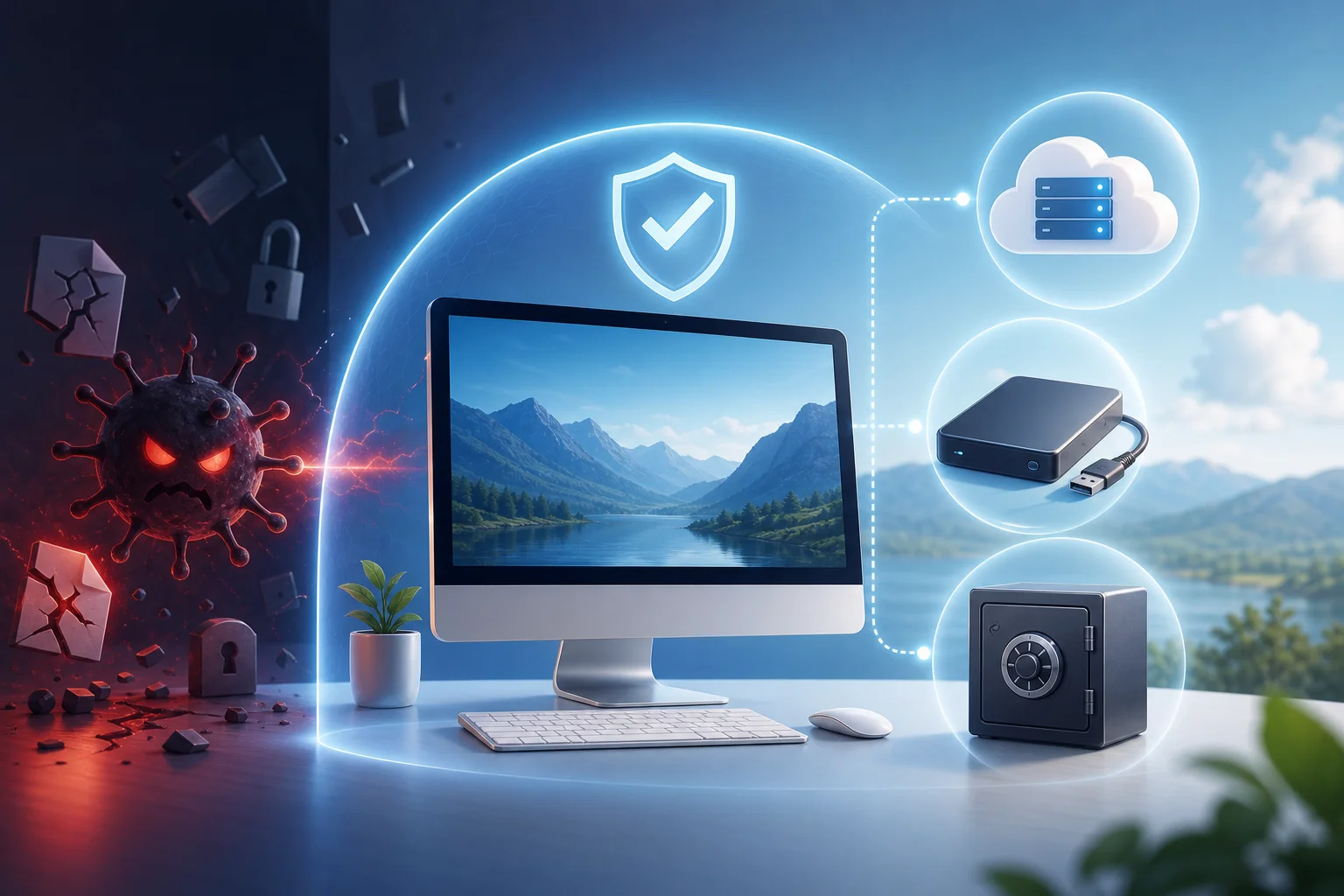
A backup is the main way to recover from ransomware without paying a ransom. But the copy must be inaccessible to the virus. If the backup is connected as a regular disk and open for writing, ransomware can encrypt it as well.
The classic 3-2-1 rule means:
| Element | What it means | Example |
|---|---|---|
| 3 copies of data | The original and at least two backups | Working laptop, local backup, cloud backup |
| 2 different media | Data should not be on just one type of device | External drive and cloud or NAS and tape |
| 1 copy offsite | One backup is stored separately | Cloud, another office, offline disk in a safe place |
To protect against ransomware, add one more rule: at least one copy must be immutable or offline. An immutable copy is protected from deletion and overwriting for a specified time. An offline copy is physically disconnected after creation.
How to set up backups at home
For a home user, a simple scheme will work:
- Store important documents in clear folders to easily include them in the backup.
- Set up automatic copying to cloud storage with version history.
- Once a week or month, create a copy on an external drive.
- After copying, disconnect the drive from the computer.
- Periodically check that the files from the copy can be opened.
Don’t limit yourself to synchronization. If malware encrypts files, synchronization can quickly send encrypted versions to the cloud. Therefore, version history and separate backups are needed.
How to set up backups in a company
For businesses, backup should be a managed process, not a personal initiative of the administrator. It is essential to determine which systems are critical, how often to copy them, and how quickly they need to be restored.
Minimum set includes:
- daily backups of working files and servers;
- separate copies of databases with proper shutdown or snapshots;
- protecting backups with separate accounts;
- prohibiting ordinary users from accessing the backup storage;
- regular test restorations;
- logs of successful and failed tasks;
- storing part of backups off the main network.
Restoration testing is more important than a fancy copy creation report. Until you’ve restored a file, folder, database, or server in a test environment, you can’t be sure the backup is usable.
Step-by-step checklist for ransomware protection
This checklist can be used as a quick action plan. Start with the first points. They provide the maximum effect at reasonable costs.
- Identify valuable data. Make a list of important folders, services, databases, cloud drives, and devices. You can’t protect what no one knows about.
- Set up backup. Use the 3-2-1 rule. Add an offline or immutable copy. Test the recovery.
- Enable updates. Update OS, browsers, office suites, servers, NAS, and network devices. Remove old programs.
- Restrict excessive rights. Work without constant admin rights. Limit access to shared folders.
- Enable MFA. Start with email, VPN, cloud, remote access, and admin accounts.
- Secure email. Set up anti-spam, attachment scanning, SPF, DKIM, and DMARC for the company domain. Train people to recognize phishing.
- Limit macros and scripts. Block macros from the internet. Control the execution of PowerShell, JavaScript, and unknown executables.
- Close remote access from the internet. Don’t publish RDP directly. Use VPN, MFA, allowlist IPs, and login logs.
- Segment the network. Separate workstations, servers, guest Wi-Fi, accounting, production systems, and storages.
- Prepare a response plan. Decide in advance whom to notify, how to disconnect infected devices, and where the contacts and instructions are.
If there’s no time for everything at once, start with backups, updates, MFA, and rights limitation. These measures address the most frequent causes of significant losses.
Windows settings that reduce risk
Windows is often attacked due to its prevalence. However, built-in features can significantly reduce risk if properly enabled.
Ransomware protection in Microsoft Defender
Windows has a controlled folder access feature. It limits modifying important directories by unknown applications. This can be enabled in the Windows security settings under virus and threat protection.
Things to do:
- enable real-time protection;
- enable cloud protection;
- activate controlled folder access;
- add important folders to the protected list;
- allow access only to trusted applications;
- do not disable alerts without analyzing the reason.
The feature may require configuration. Some work programs might be blocked initially. They should be checked and added to exceptions only after verifying their legitimacy.
Limiting macros in Office
Macros are commonly used to execute malicious code. In modern versions of Microsoft Office, internet macros may be blocked by default, but this depends on the policy and version.
For companies, it’s better to centrally prohibit macros from untrusted sources. If macros are needed for accounting or analysts, use digital signatures, trusted locations, and specific rules.
Application control
Prohibiting the launch of unknown programs reduces the risk of infection. Microsoft Defender Application Control, AppLocker, or other application control tools can be used for this purpose. The idea is simple: only permitted software can be run.
For small businesses, a gradual approach works. First, compile a list of used programs. Then restrict launching from temporary folders, user profiles, archives, and downloads. This is where malicious files often start.
Protecting macOS and Linux from ransomware
macOS and Linux should not be considered invulnerable. Attacks occur less frequently on home devices, but Linux servers, containers, NAS, and employee macOS laptops are of interest to attackers.
What to do on macOS
Enable automatic updates, use Gatekeeper, do not disable System Integrity Protection, install applications from trusted sources. For important data, enable Time Machine, but do not keep the backup disk connected all the time unless it is protected from modification.
Also, check app permissions. Do not grant access to disk, documents, downloads, microphone, and camera unnecessarily. Remove old management profiles and unknown browser extensions.
What to do on Linux
On Linux, the main risks are often associated with server services: SSH, control panels, web applications, databases, Docker, Samba, and network shares. Use security updates, keys instead of passwords for SSH, fail2ban or similar tools, firewalls, and the principle of least privilege.
For servers, unique service accounts, correct rights to directories, regular snapshots, and off-server backups are essential. If a ransomware gains access to a web server user, they shouldn’t be able to change all company data.
How to protect email and browser
Email and browser are the two main entry channels. Therefore, their protection directly affects the likelihood of infection.
Safe email handling rules
Check the sender, domain, and context. If an email is unexpected, it’s better to confirm via another channel: phone, corporate chat, or official website. Do not open archives and documents with macros if you weren’t expecting them.
Emails pressuring you are particularly dangerous. Urgency lowers attentiveness. Take a pause, hover over the link, check the address, and think about whether the sender should be sending such a file.
Browser security
Use a modern browser and keep it updated. Install a minimal number of extensions. Each extension receives certain permissions, and some can read pages or alter website content.
Practical measures include:
- remove unnecessary extensions;
- do not download programs from advertisement banners;
- check the website address before entering a password;
- do not save company passwords in the browser without protection policies;
- use a password manager with MFA.
Protecting the network, NAS, and shared folders
Ransomware is dangerous because it encrypts not only local files. If users have access to network folders, they are also at risk. Therefore, shared resources must be configured carefully.
Limiting access to shared folders
Grant rights by roles. If a department only needs read and view access, do not grant write access. If an employee is working on one project, do not give them access to the entire company archive.
Periodically check rights. After layoffs, transfers, and project closures, unnecessary access often remains. This increases damage in case of account compromise.
Protecting NAS
NAS is convenient for file storage, but it should not be left unprotected. Update firmware, disable unnecessary services, do not publish the control panel to the internet, enable MFA, use separate accounts, and snapshots.
If NAS supports immutable snapshots or protection from deletion, enable it. However, do not consider snapshots as the sole backup. In case of configuration errors, admin hacks, or device failures, you could lose everything. An off-NAS copy is necessary.
Network segmentation
Segmentation means dividing the network into zones. For example, guest Wi-Fi should not see servers. Workstations should not directly access backup systems. The accounting segment can be separated from the general office network.
Even a simple division reduces the risk of mass encryption. An attack may start on one computer but should not move freely across the entire infrastructure.
User training without scare tactics
Technology is important, but the person often makes the final decision: whether to open a file, enter a password, or enable macros. Therefore, training should be regular and practical.
A good program includes:
- short instructions with examples of real emails;
- a clear channel for reporting suspicious emails;
- rules without penalties for timely reporting;
- training newsletters without humiliating employees;
- reminders about passwords, MFA, and handling attachments.
Training should not be built on fear. It's better to explain that the employee is part of the protection, not the culprit of all problems. If a person quickly reports suspicion, the security team has a chance to stop the attack before encryption.

What to do if ransomware is already running
If you notice strange file extensions, mass renaming, a ransom note, or sudden disk slowdown, act quickly. Do not attempt to randomly open files or reboot all devices.
First actions
- Disconnect the device from the network. Unplug the network cable, turn off Wi-Fi and Bluetooth. Do not delete files or format the disk.
- Disable shared folders and network storage. If you are the administrator, temporarily block access to file servers and NAS.
- Do not pay immediately. First assess the scale, existence of backups, and decryption options. Payment does not guarantee recovery.
- Preserve evidence. Take photos of the note, save file names, extensions, times of events, and suspicious emails.
- Notify responsible parties. In the company, notify IT, security, management, and the legal department according to a pre-approved plan.
- Check other devices. Look for similar signs on shared drives, servers, and neighboring computers.
- Start recovery only after cleaning. If you return data to an infected environment, they may be encrypted again.
Can files be decrypted for free?
Sometimes there are free decryptors for specific ransomware families. This is possible if researchers have found a flaw in the encryption implementation, obtained keys, or law enforcement has seized criminal infrastructure.
Check reputation resources and the websites of known antivirus companies. Do not download unknown decryptors from forums and ad pages. They may turn out to be new malware.
When to contact specialists
If the issue involves business, servers, personal data, accounting, or potential leaks, it’s better to involve incident investigation specialists. They can help identify the entry point, stop the spread, preserve evidence, and safely restore operations.
It's important not just to recover files. You need to understand how the attack occurred. Otherwise, the ransomware or other malware may return through the same vulnerable access.
Should you pay the ransom?
Paying the ransom is risky. There is no guarantee that criminals will send the key, that the key will decrypt all files, or that stolen data will not be published. Moreover, payment itself may violate internal company policies or legal requirements if the recipient is linked to sanctioned lists.
The decision usually depends on the specific situation: the value of the data, availability of backups, legal risks, business downtime, and consultations with specialists. But the best strategy is to build protection so that the payment issue does not become the only option.
Common mistakes in ransomware protection
Even good tools do not help if used incorrectly. Here are common mistakes.
Keeping backups constantly connected
A connected disk, network resource, or cloud folder can be encrypted along with the main files. An offline copy, immutable storage, or a separate system with limited rights is needed.
Working under admin rights every day
If a malicious file is launched with high rights, the damage increases. For regular work, use a standard account.
Delaying updates for months
Some attacks exploit known vulnerabilities for which patches have been available for a long time. The longer a system goes without updates, the higher the risk.
Opening RDP to the internet
An open remote desktop with a password is a common target for brute force and credential guessing. Use VPN, MFA, and IP restrictions.
Considering the cloud a full backup
Cloud synchronization is convenient but isn’t always backup. Check version history, retention periods for deleted files, and the possibility of bulk restoration.
FAQ: questions about ransomware protection
How to tell if a computer is infected with ransomware
Signs include: files can’t be opened, unknown extensions appear, a note with a ransom demand is in folders, the disk is actively working for no reason, or the antivirus shows widespread blocks. In such symptoms, immediately disconnect the device from the network.
Will antivirus fully protect against ransomware?
No, it will not provide complete protection. Antivirus is important, but it needs to be combined with updates, MFA, rights limitation, email filtering, application control, and backups.
Which files does the virus most often encrypt?
Typically, documents, spreadsheets, presentations, photos, archives, databases, projects, accounting files, and contents of available network folders are encrypted. System files may be left untouched so that the victim can still read the ransom demand.
Will reinstalling Windows help?
Reinstalling can remove the malware but will not decrypt files. Before reinstalling, save evidence and check backups. Data should only be restored to a clean system.
Can you be protected from ransomware for free?
Yes, basic level can be raised without significant costs: enable updates, use Windows built-in protection, work without admin rights, enable MFA, make offline backups, and do not open suspicious attachments. For businesses, additional tools and processes are often needed.
How often should backups be made?
The frequency depends on how much data you are willing to lose. Home users often find that a daily cloud version and periodic offline copy are sufficient. Businesses may need daily, hourly, or more frequent backups of critical systems.
Which is more important: backup or email protection?
Both are needed. Email protection reduces the chance of infection, while backups reduce damage if an infection occurs. These are different layers of a single strategy.
Minimal plan for the next day
If you want to quickly enhance protection, take five actions today:
- Copy the most important files to an external drive and disconnect it.
- Enable MFA for email, cloud, and remote access.
- Check for updates on Windows, macOS, Linux, browsers, and office programs.
- Ensure that the antivirus is enabled and updating.
- Remove unnecessary programs, browser extensions, and old accounts.
Then, over the week, set up regular backups, check recovery processes, limit user rights, and close risky remote services.
Conclusion
Protection against ransomware works best as a system: updates close vulnerabilities, MFA protects access, rights limitation curbs spread, training reduces the risk of errors, and backups allow recovery without paying a ransom. Start with an inventory of important data and backup according to the 3-2-1 rule, then enable MFA, updates, and access controls. The sooner you implement these measures, the less likely it is that a single random link will halt work or destroy valuable files.