How to prevent ransomware attacks
How to prevent ransomware attacks is one of the main cybersecurity questions for companies, government organizations, and private users. Ransomware locks access to files and systems and then demands a ransom. This article explains how to reduce the risk of infection, protect backups, train employees, configure computers, and prepare a response plan. The main goal is not just to install antivirus software but to build a multi-layered defense where the failure of one tool does not lead to disaster.
What is ransomware and why is it dangerous
Ransomware is a type of malware that encrypts files on a computer, server, or network storage. After that, the attackers demand money for the decryption key. Modern attacks often involve not just blocking data. Criminals may preemptively steal documents, correspondence, client databases, and accounting files, and then threaten to publish them.
The danger of ransomware lies in the fact that an attack affects several levels of operations:
- employees cannot open documents and applications;
- accounting, CRM, ERP, and email become inaccessible;
- production, logistics, or sales are halted;
- recovery takes time, expertise, and clean backups;
- data leaks can lead to legal and reputational consequences.
Furthermore, ransomware does not always enter through complex technical vulnerabilities. Often, a single phishing email, a weak password for remote access, or an uninstalled update is enough. Thus, prevention should combine technical measures, organizational rules, and regular checks.
How ransomware enters the system
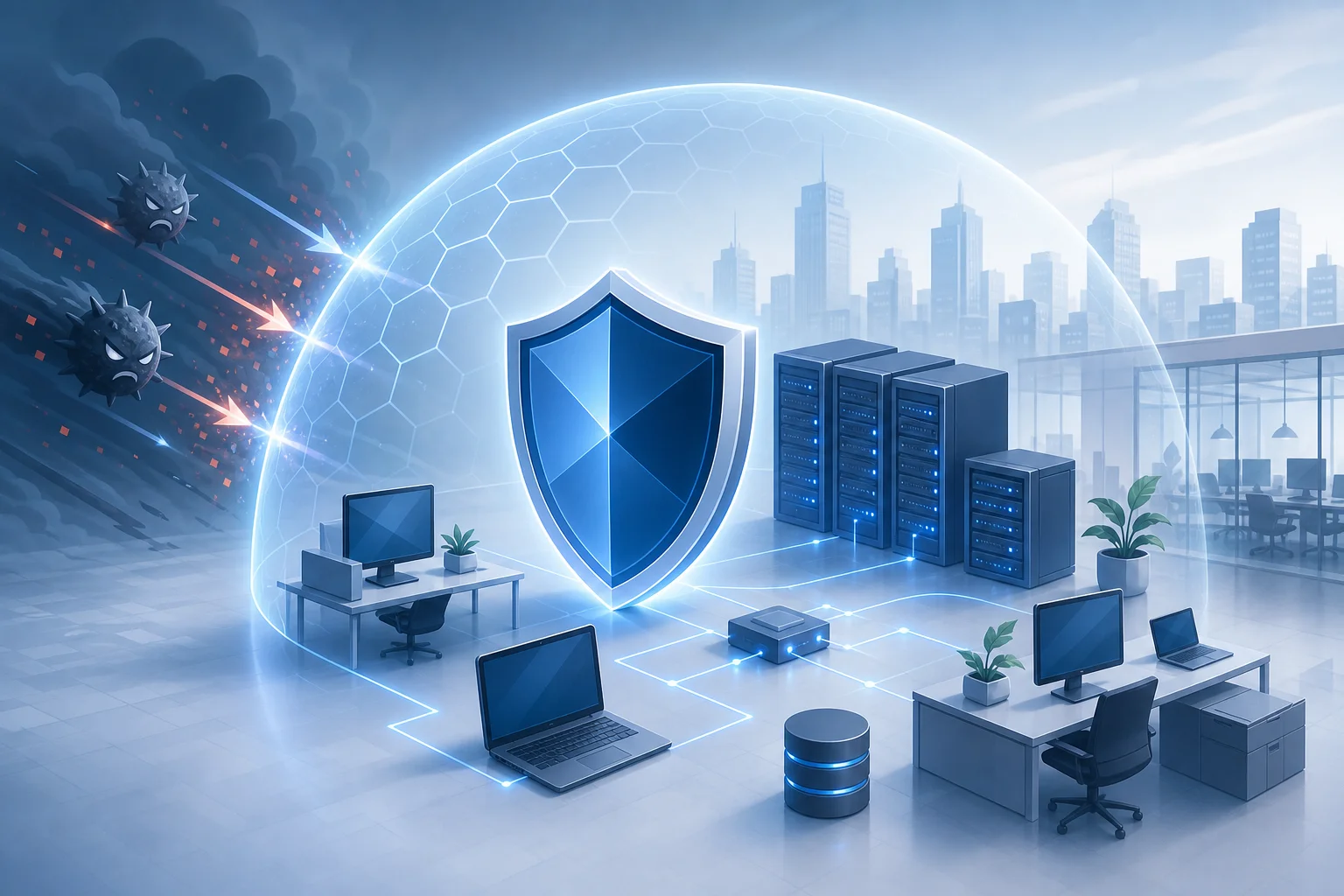
To effectively prevent ransomware attacks, it's important to understand the common infection scenarios. Most attacks start with gaining initial access. After that, attackers explore the network, escalate privileges, disable protections, look for backups, and only then initiate encryption.
Phishing emails and malicious attachments
Phishing remains one of the most common methods of infiltration. A user receives an email that looks like an invoice, act, delivery notice, request from a partner, or message from their supervisor. Inside, there might be an attachment, a link to a fake website, or an archive with an executable file.
Documents with macros, ISO files, LNK, JS, VBS, EXE files, and password-protected archives are particularly dangerous. The password in the email prevents the mail gateway from checking the content. Therefore, organizations should filter such attachments and train employees not to open unexpected files.
Weak passwords and remote access
Open RDP, VPN without multi-factor authentication, identical passwords, and old accounts create a convenient entry for attackers. If a malicious actor gains access to an administrator's account, they can quickly spread ransomware across the network.
It's important to limit remote access by IP addresses, use MFA, close unnecessary ports, regularly review permissions, and disable unused accounts.
Vulnerabilities in software and unsupported systems
Unpatched operating systems, servers, VPN gateways, mail solutions, hypervisors, and web applications often become entry points. Public vulnerabilities are quickly exploited by automated tools. If a patch has been released but not applied, the risk significantly increases.
Outdated systems that are no longer supported should be isolated, replaced, or secured with additional measures. It should not be assumed that an old server is safe just because it has been running for a long time without incident.
Compromised websites and third-party vendors
Sometimes infection occurs through a hacked website, fake update, malicious advertising, or contractor account. If a supplier has access to your infrastructure, their security becomes part of yours. Therefore, it's necessary to monitor third-party access, establish clear agreements, and grant the minimal required rights.
The principle of multi-layered protection
Reliable protection against ransomware is based on the principle of defense in depth. This means you have several independent barriers. If an employee does open a malicious email, mail filtering, EDR, privilege isolation, network segmentation, and backups should mitigate the damage.
Multi-layered protection includes:
- preventing malicious code from entering;
- quick detection of suspicious activity;
- limiting spread within the network;
- storing immutable backups;
- having a ready recovery plan;
- training personnel and checking processes.
The main mistake is relying on a single tool. Antivirus is important, but it does not replace backup. Backups are important, but they do not protect against data leaks. MFA reduces the risk of password theft but does not eliminate the need for updates and rights control.
Step-by-step plan to prevent ransomware attacks
Below is a practical plan that can be used as a checklist. It is suitable for small businesses, office networks, remote teams, and home infrastructures. The scale of implementation will vary, but the logic remains the same.
Step 1. Conduct an asset inventory
You cannot protect what you do not know. Create a list of devices, servers, cloud services, accounts, network storage, databases, and critical applications. Highlight systems accessible from the internet.
A minimum inventory should include:
- name of the device or service;
- owner or responsible employee;
- operating system and version of the software;
- criticality level for the business;
- presence of a backup;
- method of remote access;
- date of the last update.
This will make it easier to identify where the main risks are: an old server, a forgotten account, open RDP, or a network drive without a backup.
Step 2. Enable multi-factor authentication
MFA is one of the most effective measures against account takeover. Enable it for email, VPN, cloud interfaces, administrator accounts, remote access systems, and critical business applications.
It's best to use authenticator apps, hardware keys, or push confirmations with additional verification. SMS is better than no MFA, but they are less resistant to certain attacks. For administrators, more stringent methods should be applied.
Step 3. Limit user permissions
A user should not operate under an administrator account. The fewer rights a compromised account has, the harder it is for an attacker to disable protection, encrypt network resources, and propagate further.
Apply the principle of least privilege:
- grant rights only for specific tasks;
- regularly review access;
- separate standard and administrative accounts;
- disable local administrators where not needed;
- do not use shared passwords for multiple devices;
- immediately remove accounts of dismissed employees.
Step 4. Configure backups according to the 3-2-1 rule
Backups are the last line of defense when prevention fails. The 3-2-1 rule means: keep at least three copies of data, on two different types of media, and one copy should be offsite. For protection against ransomware, offline copies or immutable storage are especially important.
Verify not only the existence of backups but also the ability to restore them. A backup that has not been tested may prove useless on the day of an attack.
Step 5. Update systems and close vulnerabilities
Create a regular process for implementing updates. Systems accessible from the internet should be prioritized: VPN, mail servers, web servers, remote access gateways, hypervisors, and control panels.
For businesses, it's useful to maintain a log of updates and timelines for critical patch installations. If the system cannot be updated immediately, apply temporary measures: disable the vulnerable function, limit access by IP, isolate the server, or enable additional monitoring.
Step 6. Protect email and web traffic
The mail gateway should check attachments, links, and sender domains. Set up SPF, DKIM, and DMARC for corporate email to reduce the risk of domain spoofing. Block dangerous file types as needed.
For web traffic, use DNS filtering, protection against malicious domains, and limit executable file uploads. This won’t solve all problems but will reduce accidental infections.
Step 7. Implement EDR or modern endpoint security
Standard antivirus checks files against signatures and behavior. EDR additionally monitors processes, execution chains, network connections, mass file modification attempts, and credential activities. For organizations, this is an essential layer of protection.
When choosing a solution, pay attention not only to the product name but also to the response process. Who receives alerts? Who analyzes incidents at night or on weekends? How quickly can you isolate an infected computer from the network?
Step 8. Segment the network
If all devices are on a flat network, it’s easier for ransomware to spread. Divide the infrastructure into segments: workstations, servers, accounting, production, guest Wi-Fi, cameras, testing environments, and administration.
There should be access rules between segments. For example, a manager's workstation does not need direct access to a hypervisor or domain controller. The fewer unnecessary connections, the smaller the attack surface.
Step 9. Prepare a response plan
A response plan is needed before an attack, not during a panic. It should include contacts for responsible individuals, isolation procedures for devices, a list of critical systems, communication rules, and a restoration scenario from backups.
A good plan answers questions like:
- who makes the decision to disconnect a network segment;
- how to contact the team if corporate email is unavailable;
- where the backup list and emergency access passwords are stored;
- who notifies management, lawyers, clients, and regulators;
- which systems are restored first;
- how evidence for investigation is documented.
Comparison of key protective measures
This table will help set priorities. It's better to implement measures comprehensively, but if resources are limited, start with the most critical: backups, MFA, updates, permissions restrictions, and email protection.
| Protective measure | What it prevents | Implementation difficulty | What to check |
|---|---|---|---|
| 3-2-1 backup | Data loss after encryption | Medium | Is there an offline or immutable copy, has restoration been tested |
| MFA for email, VPN, and administrators | Account takeover | Low or medium | Are there any exceptions for old protocols and service accounts? |
| Regular updates | Exploitation of known vulnerabilities | Medium | Are public services patched first? |
| Rights restriction | Mass distribution and disabling protection | Medium | Do users operate without administrator rights? |
| Email filtering | Phishing and malicious attachments | Low or medium | Are dangerous file types and links blocked? |
| EDR and monitoring | Hidden attacker activity | Medium or high | Is there someone responsible for analyzing alerts? |
| Network segmentation | Rapid spread within infrastructure | Medium or high | Are unnecessary connections between segments prohibited? |
| Employee training | Mistakes when dealing with emails and files | Low | Are regular drills and case studies conducted? |
How to protect backups from ransomware
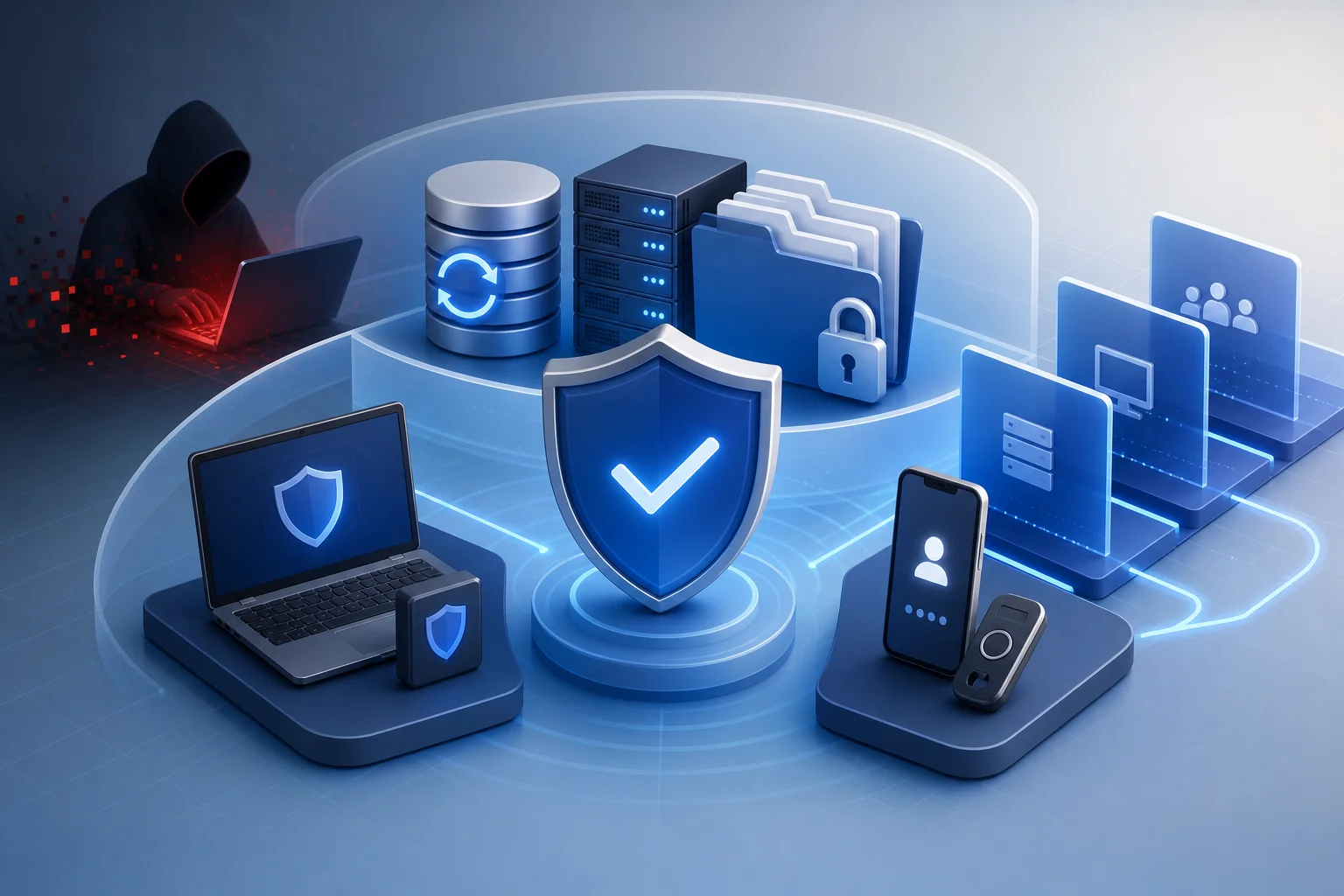
Many ransomware variants first search for and destroy backups. Therefore, simply connecting an external drive or network storage is not enough. If the backup is accessible for writing from an infected computer, it can also be encrypted.
Use immutable and offline copies
Immutable storage does not allow for change or deletion of a copy for a specified period. An offline copy is physically or logically disconnected from the primary network. Both approaches help preserve data even when accounts are compromised.
Practical options include:
- an external drive that is only connected during the copying process;
- cloud storage with versioning and deletion locks;
- WORM mode or object lock in compatible storages;
- a separate backup server in an isolated segment;
- accounts for backup without interactive login rights.
Separate access to data and backups
The domain administrator account should not automatically have full access to backups. If one password opens all doors, an attack can quickly become critical. Use separate accounts, different passwords, MFA, and log actions.
It's also useful to keep backup system settings and recovery instructions separately. In a crisis situation, the team should know where the copies are and how to restore services without access to regular documentation.
Test restoration
Regular recovery testing is necessary. The test can be simple: once a month, restore a few files, and once a quarter, restore a critical server in an isolated environment. It’s important for businesses to know their RPO and RTO. RPO indicates how much data can be lost over time. RTO indicates how quickly services need to be restored.
If a company does not know these metrics, it cannot realistically assess the consequences of an attack and properly configure the backup schedule.
Configuring workstations and servers
Most attacks start from an ordinary computer or vulnerable server. Therefore, basic hygiene for endpoints plays a key role.
What to do on work computers
For workstations, apply a standard secured profile:
- disable autoplay from external devices;
- block running macros from the internet, if not needed;
- show file extensions in the explorer;
- limit launching programs from temporary folders and user profiles;
- use application control where possible;
- enable local firewall;
- encrypt laptop disks;
- automatically lock screens;
- remove unnecessary software and browser extensions.
Pay special attention to users dealing with many external documents: accounting, sales, HR, procurement, and secretarial staff. They are more likely to receive attachments from new senders.
What to do on servers
Servers should be minimalist. The fewer unnecessary services, the lower the risk. Separate roles: domain controller, file server, database, web server, and backup system should not unnecessarily coexist on one machine.
For servers, it's crucial to:
- disable unused services and ports;
- limit administration to a separate subnet or VPN;
- enable logging of logins and changes;
- use strong passwords and MFA where possible;
- monitor administrator groups;
- update OS and applications timely;
- store secrets not in scripts and text files, but in secure storage.
Account and password protection
Compromised credentials are often more dangerous than infecting a single file. Once attackers gain a password, they can act like legitimate users and bypass some protective systems.
Password policy without unnecessary complexity
Passwords should be long and unique. It is better to use password phrases and a password manager than to force people to come up with complex short combinations that they write down on paper. A separate password is needed for each service.
Recommendations include:
- minimum length is more important than artificial complexity;
- prohibit reusing corporate passwords in personal services;
- check passwords against known leaks;
- do not send passwords via messaging apps and emails;
- use a password manager for the team;
- change passwords immediately if compromise is suspected.
Privileged accounts
Administrator accounts require separate control. Use separate accounts for everyday work and administration. Do not open emails and websites from administrative accounts. Limit administrator access only to necessary systems.
For mature infrastructures, PAM solutions that temporarily grant privileges, log sessions, and reduce the risk of permanent superuser rights are useful.
Employee training without formalities
People are not a weak link; they are part of the protection system. But training should be practical. A long presentation once a year rarely changes behavior. It is better to conduct short regular sessions, show real examples of emails, and explain where to report suspicions.
Employees should be able to recognize signs of phishing:
- pressure caused by urgency and fear;
- requests to open unexpected files;
- strange sender address;
- a link leading to a similar but different domain;
- a request to enter a password after transitioning from an email;
- a password-protected archive;
- unusual requests from a supervisor or partner.
It's important to create a culture where a person does not fear reporting mistakes. If an employee opens a suspicious file, a quick call to IT can save the entire network. Punishment and shame, on the other hand, make people silent.
Monitoring and early detection
Prevention is important, but one must be ready for some attacks to penetrate the first barriers. Early detection reduces damage. Look for signs that may indicate preparations for encryption.
Signs of a possible attack
Suspicious signals include:
- mass renaming or changing of files;
- a sharp increase in file access errors;
- logins at unusual times or from unusual countries;
- creation of new administrator accounts;
- disabling antivirus or logs;
- launching remote administration tools without coordination;
- network scanning from a user computer;
- attempts to access backups with an unusual account.
Set up centralized log collection at least for critical systems: domain controllers, VPN, email, EDR, backup servers, and file storages. If there is no internal monitoring team, consider external SOC or MSSP services.
What to do at the first signs of infection
If you notice signs of ransomware, do not shut down everything chaotically. In some cases, a sudden shutdown can complicate the investigation, but delaying action is also dangerous. Act according to the plan:
- Isolate the suspicious device from the network: disconnect the cable, Wi-Fi, or block the port.
- Do not delete files or reinstall the system before capturing essential data.
- Notify those responsible for IT and security.
- Block compromised accounts.
- Check neighboring devices and network resources.
- Stop propagation: disable shared folders or segments if necessary.
- Save logs and samples of malicious files for analysis.
- Restore systems only from clean and verified backups.

Should you pay the ransom
Paying does not guarantee data recovery. Attackers may not send the key, send a non-functional tool, or attack the organization again. Additionally, paying supports the criminal economy and may involve legal risks depending on jurisdiction and the recipient of the funds.
The decision on the next steps should involve management, lawyers, security specialists, and, if necessary, law enforcement. But the best strategy is to ensure that paying the ransom is not the only option. Reliable backups, a restoration plan, and minimizing data leaks are required for that.
Features of small business protection
Small businesses often lack large IT teams, but basic measures are still available. Start with a simple and measurable set:
- enable MFA for email, banking, CRM, cloud, and remote access;
- set up automatic backups with a separate secure copy;
- purchase or set up reliable endpoint protection;
- update computers, routers, NAS, and servers;
- prohibit working under an administrator account for regular tasks;
- train employees to check emails and attachments;
- keep a list of contacts for incident response;
- verify who has access to shared folders.
If there is no internal administrator, it is advisable to engage a reliable contractor for an audit. It is important not only to install programs but also to ensure that backups can be restored, MFA is genuinely enabled, and remote access is not open to the entire internet.
Features of protection for home users
Home users also face ransomware threats. Risks are increased by pirated software, cracks, dubious downloads, disabled updates, and lack of backups.
Practical measures for home users include:
- use licensed software and download programs from official sites;
- enable automatic updates for Windows, macOS, browsers, and applications;
- store copies of important photos and documents in the cloud with versioning;
- periodically make an offline copy on an external disk;
- do not disable built-in system protection without reason;
- do not open suspicious attachments;
- use a password manager and MFA for email;
- create a separate account without administrator rights for everyday work.
It is useful to explain basic rules to children and elderly relatives in the family. One downloaded file can encrypt shared folders, connected drives, and family archives.
Common mistakes in ransomware protection
Even organizations with good intentions make mistakes. Some of them seem minor but significantly increase risk.
One backup is always connected to the network
If the disk or network storage is always accessible for writing, ransomware can reach it. A separate copy that cannot be modified from the ordinary network is needed.
MFA is not enabled everywhere
Sometimes MFA is enabled for management but forgotten for administrators, VPN, old email protocols, or service accounts. Attackers specifically seek exceptions.
All users have too many rights
If an employee has access to all shared folders, an infection on their computer can damage the data of several departments. Permissions should match roles.
No recovery testing
A backup might be incomplete, corrupted, or too old. Regular recovery testing is a mandatory part of protection, not an optional one.
Incidents are hidden out of fear
If employees fear punishment, they report suspicious activities too late. This gives attackers time. It is better to encourage quick reporting and analyze mistakes without public pressure.
FAQ: answers to popular questions
How to tell if a computer is infected with ransomware
Typical signs include files stopping to open, new extensions appearing, notes on the desktop or in folders demanding ransom, unusual slowness of the computer, and antivirus reporting mass file changes. If you suspect infection, immediately isolate the device from the network and contact a specialist.
Can antivirus fully prevent a ransomware attack
No. Modern endpoint protection is important, but it does not provide an absolute guarantee. You need backups, MFA, updates, rights restrictions, email filtering, network segmentation, and a response plan.
How often should backups be made
The frequency depends on how much data you are willing to lose. If losing one day’s worth of data is critical, backups are needed more than once a day. For important databases, copying may need to be done several times a day or nearly continuous replication. The key is to store at least one protected copy out of reach of ransomware.
Does the cloud protect against ransomware
The cloud helps if versioning, MFA, rights restrictions, and deletion protection are enabled. But syncing is not a complete backup by itself. If encrypted files are synced to the cloud, without versions and a trash bin, you can lose clean copies.
What to do if ransomware has already encrypted files
Disconnect infected devices from the network, do not pay immediately, and do not run random decryptors from the internet. Preserve the ransom note and samples of the files, consult with specialists, verify backups, and restore in a clean environment. Also, change passwords and check for data leaks.
Is it necessary to disable the internet during an attack
Sometimes temporarily disabling external access or specific network segments helps stop the spread. However, it is better to act according to a pre-prepared plan. It is important to isolate infected devices, preserve logs, and not destroy evidence that will help understand the scale of the incident.
Minimum checklist for the next 7 days
If you need to quickly reduce risk, start with a short plan. It does not replace a full security program but provides immediate effects.
- Check if there are backups of critical data and if at least one file can be restored.
- Make one offline or immutable copy of the most important data.
- Enable MFA for email, VPN, cloud services, and administrators.
- Close open RDP and other unnecessary services from the internet.
- Install critical updates on public systems and workstations.
- Remove local administrator privileges from regular users.
- Check who has access to shared folders and backups.
- Set up filtering for dangerous email attachments.
- Conduct a short briefing on how to recognize phishing and where to report.
- Record contacts and action protocols in case of infection.
How to assess readiness for an attack
A useful question: what will happen if half of the servers are encrypted tomorrow morning? If the answer is unclear, preparations need to be improved. Conduct a tabletop exercise. Gather IT, management, lawyers, and owners of key processes and walk through a scenario without actual system shutdowns.
Check:
- who will detect the attack and how quickly;
- which services will be stopped first;
- which data will be restored first;
- where instructions are kept if the file server is unavailable;
- whether there are clean accounts for recovery;
- how long it will take to launch a minimally functioning infrastructure;
- how you will communicate with employees and clients.
Such an exercise often reveals simple but critical gaps: there is no backup communication channel, emergency access passwords are stored only in an encrypted system, and the person responsible for backups is on vacation, so no one knows the recovery procedure.
Conclusion
It is impossible to completely prevent ransomware attacks, but it is possible to significantly reduce the likelihood of infection and prepare for rapid recovery. Start with inventory, MFA, updates, rights restrictions, and secure backups. Then add email filtering, EDR, network segmentation, monitoring, and regular training. Do not delay: choose three measures from the checklist, assign responsibilities, and implement them within the next week.