Antivirus for protection against ransomware: how to choose and configure
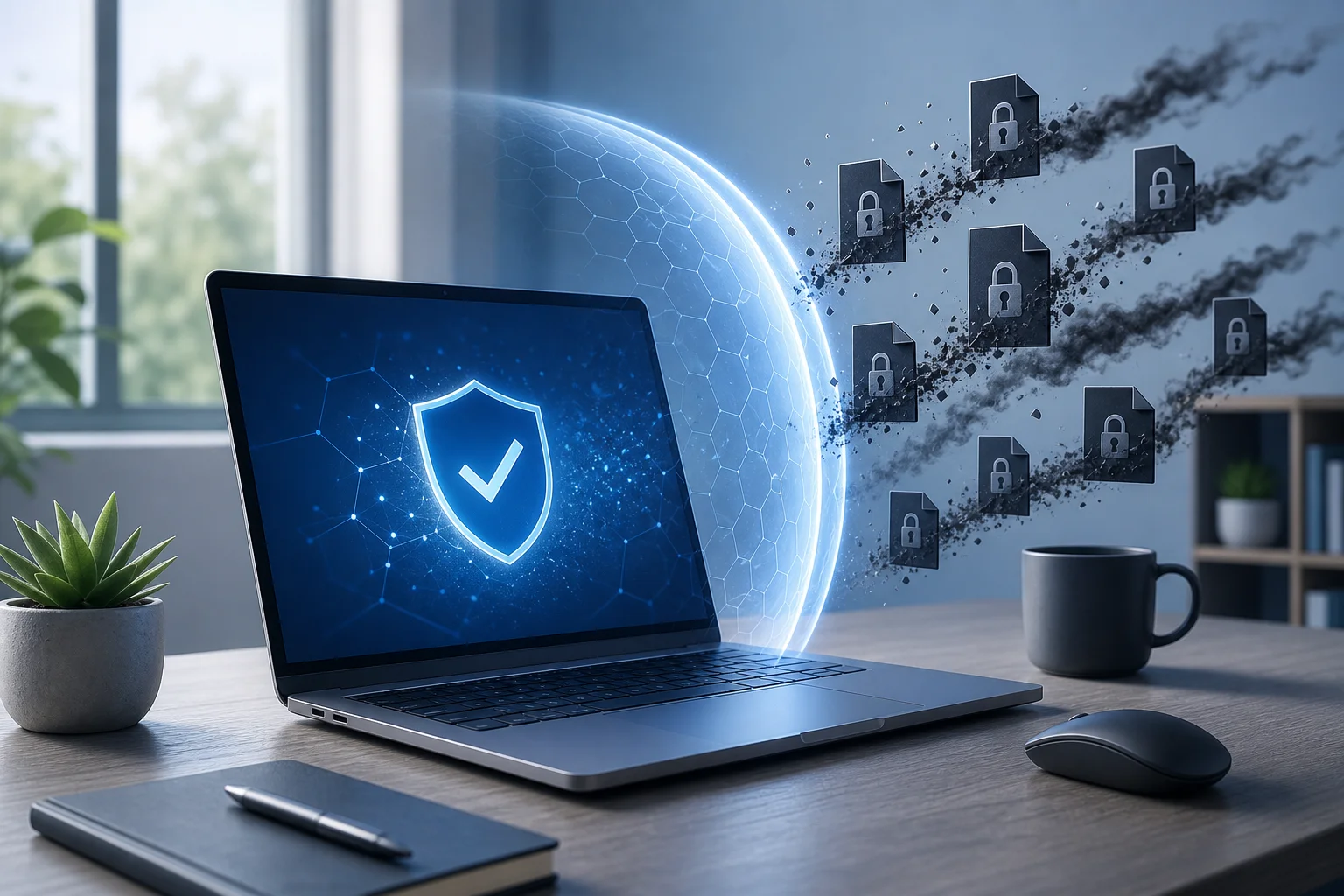
Antivirus for protection against ransomware is needed not only for finding known viruses. Modern ransomware attacks through phishing, vulnerabilities, remote access, and malicious attachments, and then encrypt documents, databases, and archives. In this article, we will discuss which features truly help against ransomware, how to choose a solution for home and business, how to configure protection, and why antivirus should work alongside backup, updates, and access controls.
Ransomware is malware that blocks access to files or systems and demands a ransom. The main problem is that even a good antivirus is not a magic button. If a user runs a malicious file with administrator rights, the server is open on the internet without protection, and there are no backups, the risk remains high. Therefore, the right strategy is multilayered protection.
Below you will find practical criteria for choosing, a feature comparison table, a step-by-step setup plan, and answers to frequently asked questions. The material is suitable for Windows users, small business owners, system administrators, and anyone who wants to reduce the risk of data loss.
Why ransomware is dangerous
Ransomware is dangerous because its goal is not just to infect a computer but to deprive the owner of access to working data. They can encrypt documents, photos, accounting databases, network folders, virtual machines, and backups if they are connected as a regular disk.
Moreover, modern attacks often occur in several stages. First, the attacker gains access through a phishing email, weak password, vulnerability in VPN, RDP, or mail server. Then, they establish a foothold in the network, escalate privileges, disable protection, and only then execute the encryption. Therefore, protection against ransomware must detect not only the malicious file itself but also suspicious behavior.
For home users, the damage is usually related to the loss of personal files: photo archives, documents, and school projects. For companies, the consequences are broader: business downtime, infrastructure recovery, data leaks, breaches of contractual deadlines, and reputational risks.
How antivirus works against ransomware
Classic antivirus software used to primarily compare files with a database of known signatures. This approach is still useful, but it is insufficient for ransomware. New variants of malware appear rapidly, and attacks can use legitimate administrative tools.
Modern antivirus solutions for ransomware protection typically combine several methods.
Signature detection
Signatures help find known malware. This is a quick and reliable method if the threat has already been studied by the manufacturer. However, a new version of ransomware may differ from the old one, so a virus database alone is not enough.
Behavioral analysis
Behavioral protection tracks the actions of programs. For example, if an application suddenly starts mass-changing documents, renaming files, deleting Windows shadow copies, or accessing a large number of network folders, the antivirus can stop the process.
This feature is particularly important against unknown ransomware. It allows for a response to a chain of actions rather than just the file name.
Protection of important folders
Some solutions allow restricting access to folders with documents, photos, and work projects. Applications from the trusted programs list can change files, while unknown programs cannot. In Windows, a similar approach is implemented through controlled folder access in Microsoft Defender.
Such protection does not replace backups but can stop mass encryption of user data.
Change rollback
Some security products can create temporary copies of changing files or log actions of suspicious processes. If a process is deemed malicious, the system attempts to roll back changes. This is a useful feature, but it does not guarantee complete restoration of all data, especially if the attack affected network resources or occurred with administrator rights.
Web protection and anti-phishing
Many infections begin with an email, malicious link, or fake website. Therefore, the module that checks web pages, attachments, and downloads reduces the risk of ransomware execution even before the file reaches the computer.
Script and macro control
Attacks often use PowerShell scripts, JavaScript, VBS, Office macros, and password-protected archives. Good protection should analyze suspicious scripts, block dangerous commands, and warn about running attachments from unreliable sources.
What antivirus should be for protection against ransomware
When choosing a product, it’s important to look not at flashy descriptions but at specific features. Below is a list of capabilities that really matter.
Mandatory features
- Behavioral protection against ransomware. The antivirus should track mass file changes, attempts to delete backups, and the launching of suspicious processes.
- Regular updates. Databases, cloud reputation, and the engine must update automatically.
- Web and email traffic protection. This reduces the risk of infections through links, attachments, and downloads.
- Controlled folder access. It is preferable to be able to protect documents, work directories, and network folders.
- Exploit protection. This helps when an attack exploits a vulnerability in the browser, office suite, or other applications.
- Password and credential protection. If an attacker steals the administrator's password, they can disable protection or spread ransomware across the network.
- Reports and notifications. The user or administrator should understand what has been blocked and what actions are needed next.
Desired features for business
For an organization, a single home antivirus is often insufficient. Businesses should consider endpoint protection, EDR, or XDR solutions if they have a distributed network, servers, and remote employees.
Useful capabilities include:
- centralized management console;
- security policies for device groups;
- prevention of users disabling protection;
- USB device control;
- inventory of software and vulnerabilities;
- isolation of infected computers from the network;
- event logs for investigations;
- integration with SIEM or monitoring systems;
- protection for servers and virtual environments.
If the company does not have an in-house information security specialist, managed workstation protection services can be considered. In this case, policy setup, event monitoring, and response are handled by an external provider.
Comparison of ransomware protection features
The following table will help quickly understand which features are important and what risks they cover.
| Feature | Protects against | Particularly needed by |
|---|---|---|
| Behavioral analysis | Unknown ransomware, mass file changes | All users |
| Important folder protection | Unauthorized modification of documents | Home users and small businesses |
| Anti-phishing | Malicious links and fake websites | Anyone who works with email |
| Script control | PowerShell, macros, malware scripts | Offices and administrators |
| Exploit protection | Attacks via software vulnerabilities | All Windows users |
| Centralized management | Disabling protection, weak settings, chaos in the network | Companies |
| Device isolation | Ransomware spread across the network | Organizations with multiple PCs |
| Reports and logs | Incident investigation | Businesses and IT specialists |
| Server protection | Encryption of shared folders, databases, and virtual machines | Companies |
| Integration with backups | Data loss after a successful attack | Anyone with valuable data |
Important: Having all features does not guarantee absolute security. However, the more layers of protection, the harder it is for an attacker to go unnoticed.
How to choose a solution for home
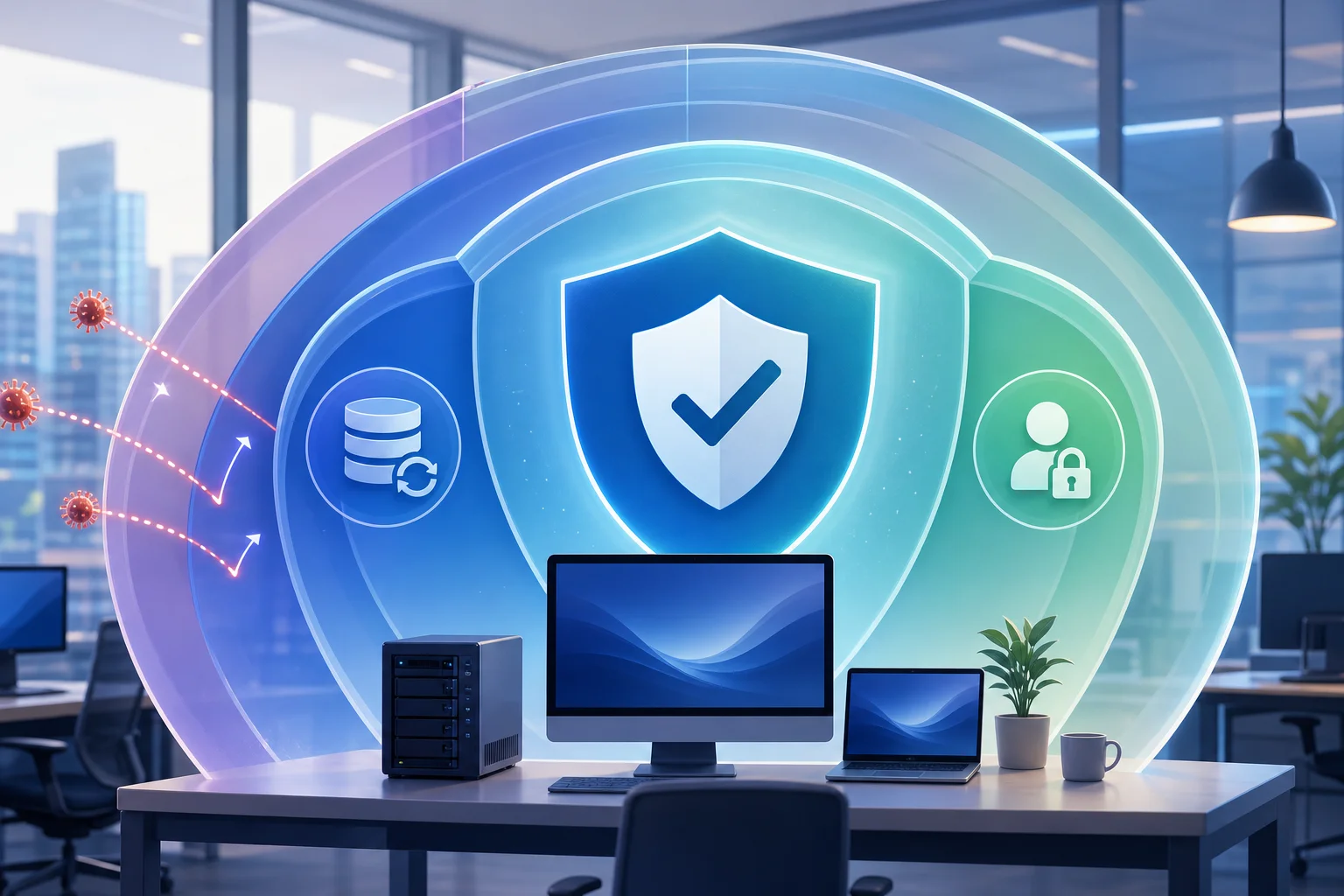
For a home computer, the main criteria are reliability, ease of setup, and availability of ransomware protection features. If you are using Windows 10 or 11, built-in Microsoft Defender already includes basic protection, cloud checking, SmartScreen, and controlled folder access. However, some features need to be manually enabled, and the quality of protection depends on system settings and user behavior.
Paid antivirus solutions can add convenient anti-phishing, update managers, webcam protection, parental controls, VPN, or clearer notifications. But purchasing the maximum package just for a long list of additional options isn't always necessary. More important is that the product has strong detection modules, folder protection, and regular updates.
When choosing for home, ask yourself a few questions:
- Do I have a backup of important files not on this computer?
- Does the antivirus protect documents from mass changes?
- Does it check links and attachments?
- Can I easily understand what has been blocked?
- Does the product slow down my computer so much that I want to disable it?
If a user regularly downloads programs from unverified sites, works with pirated software, or opens attachments from unknown emails, even the best antivirus can’t compensate for all risks. In this case, habits need to change first.
How to choose protection for business
In business, a ransomware attack rarely limits itself to a single laptop. File servers, accounting workstations, CRM, ERP, databases, backups, and administrator accounts are all at risk. Therefore, the approach should be systemic.
What to check before buying
Before implementing a solution, map the infrastructure. You need to understand how many devices need protection, what servers exist, where critical data is stored, who works remotely, and which access channels are open to the outside.
Then evaluate the product based on the following criteria:
- Support for all platforms. The solution should protect Windows, macOS, Linux servers, and mobile devices if they are used in the company.
- Single console. The administrator should see the protection status on all devices.
- Access policies. The user should not be able to simply disable protection.
- EDR capabilities. For companies with increased risks, important are the investigation of attack chains, searching for indicators of compromise, and remote isolation of hosts.
- Server protection. Separate policies are needed for file servers and terminal servers.
- Backup support. Antivirus does not replace backups but should not conflict with them.
- Quality of support. In the event of an incident, the speed of response from the vendor or integrator is crucial.
Why small businesses can't rely solely on free solutions
Free protection may be acceptable for personal devices, but companies have different requirements: policy management, status monitoring, event auditing, prevention of module disabling, server protection, and responsibility for response. If an employee disables antivirus on their PC and the administrator doesn't see it, the risk rises sharply.
Even a small organization benefits from centralized management. It allows for quick understanding of where protection is outdated, which devices have not been updated for a long time, and where suspicious actions have been blocked.
Step-by-step setup of ransomware protection
Below is a practical plan that can be used as a checklist. It is suitable for a home computer and can be adapted for a small company.
- Update the operating system. Install the latest updates for Windows, macOS, or Linux. An unprotected system makes it easier to get infected.
- Install or enable antivirus. Ensure that real-time protection is active, databases are updating, and cloud checking is enabled.
- Enable ransomware protection. Activate behavioral analysis, controlled folder access, exploit protection, and script checking if these features are available.
- Add important folders to protection. Protect documents, work projects, photos, accounting folders, and databases if they are stored locally.
- Set up backups. Use the 3-2-1 rule: three copies of data, two different types of media, one copy off the main device or network.
- Limit user rights. Work under a standard account and use administrator rights only for maintenance.
- Disable unnecessary remote access. If RDP is not required, turn it off. If needed, use VPN, complex passwords, MFA, and IP restrictions.
- Check email security. Enable attachment filtering, block dangerous file types, and protect against phishing.
- Restrict macros from the internet. Macros in Office documents should run only when absolutely necessary and from trusted sources.
- Conduct a recovery test. A backup is useful only if it can restore data. Check this in advance.
- Set up notifications. In business, protection events should be sent to the responsible employee, not just remain on the user's screen.
- Train users. Explain what phishing emails, dangerous attachments, and fake login windows look like.
This plan does not require complex terminology but closes off the main paths of attack. Start with updates, antivirus, and backups. Then add stricter policies.
Backups as part of protection
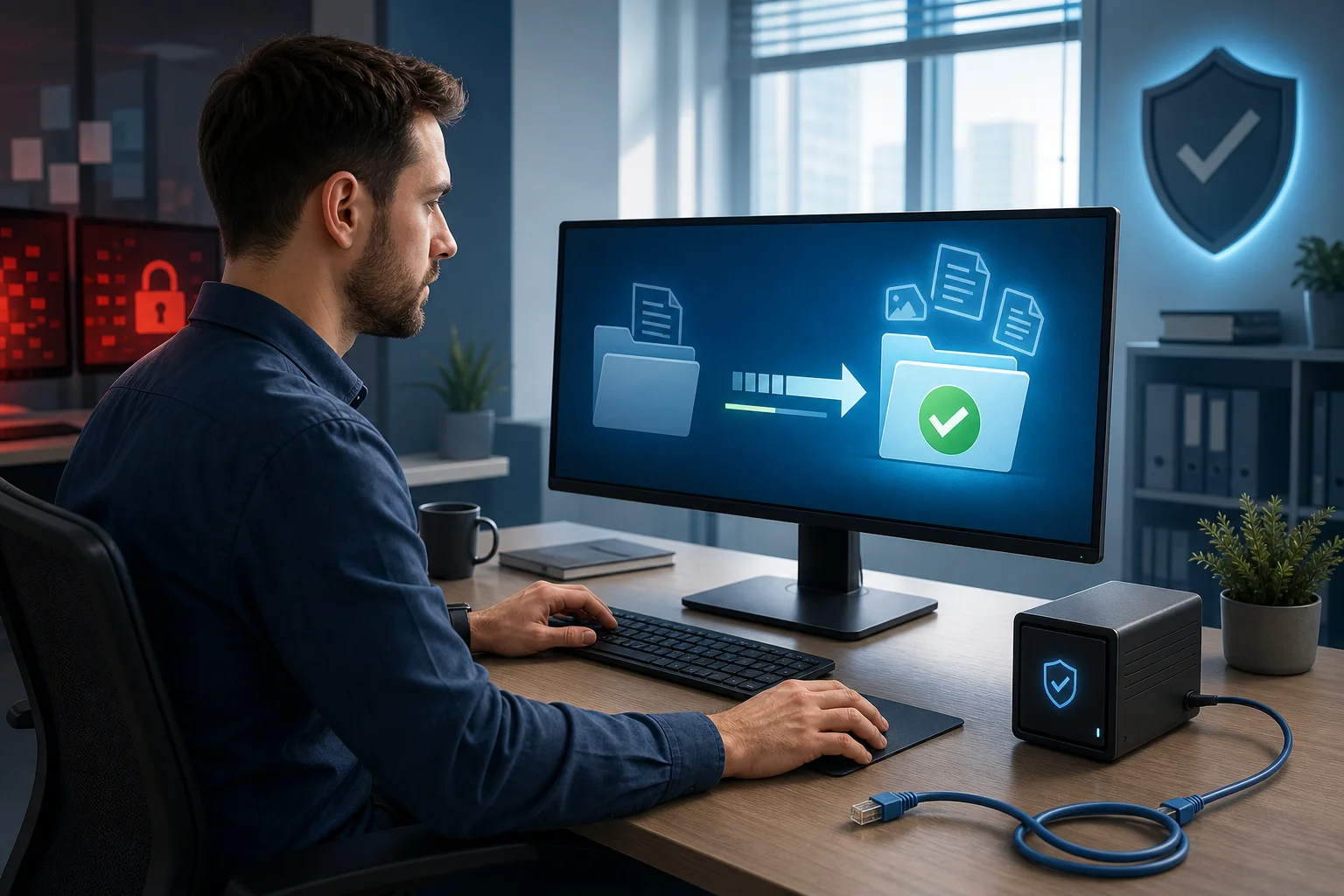
Antivirus reduces the likelihood of infection, but a backup reduces the cost of error. If ransomware does trigger, a backup allows for data recovery without negotiations with criminals.
It’s better to use several levels of copying:
- local copy on an external disk that is not constantly connected;
- cloud copy with versioning;
- a separate storage for business that is not accessible to regular users;
- periodic offline copies for critical data.
The main rule: backups should not be accessible to ransomware as a regular folder with write permissions. If the external disk is always connected, the malware can encrypt it too. If network storage is accessible under the same account, it is also at risk.
For companies, it is important to separate rights. A user who works with documents should not be able to delete all backups. Accounts for the backup system should have separate passwords, MFA, and limited access.
Typical mistakes in ransomware protection
Even good protection often fails due to misconfiguration. Below are common mistakes to eliminate.
Disabled real-time protection
Sometimes users disable antivirus because it interferes with installing a program or raises alerts. This is a dangerous habit. If protection needs to be temporarily turned off for diagnosis, it should be done by an experienced specialist and for a short time.
Working under administrator
When daily work is done under an administrator account, the malware gets more opportunities. It can change system settings, disable services, and affect more files.
Lack of updates
Outdated browsers, archivers, office suites, and server applications create a convenient entry point for attacks. It’s necessary to update not only Windows but also all frequently used software.
Unrestricted network folders
If each employee has full access to all shared folders, one infected computer can compromise the data of an entire department. Access should be granted on the principle of least privilege.
Backups on the same network
A copy that is constantly connected and writable does not protect against ransomware. Use versioning, offline copies, and separate accounts.
Ignoring warnings
If the antivirus has blocked a suspicious file, it is unwise to immediately add it to exclusions. First, understand the source of the file, check it in a sandbox or a reputation checking service, and evaluate the necessity of running it.
What to do if ransomware has already attacked
If you see strange file extensions, a ransom note, or mass renaming of documents, act quickly and calmly.
- Disconnect the device from the network. Pull the network cable, turn off Wi-Fi, or isolate the computer through the management console.
- Do not restart unnecessarily. Sometimes after a restart, the malware continues to operate or complicates analysis.
- Do not delete traces immediately. Notes, file names, and logs may help identify the ransomware family.
- Stop the spread. Check shared folders, servers, and other workstations.
- Notify responsibility. In the company, immediately notify the IT service, management, and, if necessary, response specialists.
- Make a copy of the encrypted data. This may be useful if a decryptor appears later.
- Check for a decryptor. For some old families, free tools exist, but for new attacks, they may not always be available.
- Recover from clean copies. Before recovery, make sure the infection source is eliminated.
Paying a ransom is risky. Payment does not guarantee receiving a key, does not guarantee complete recovery, and supports a criminal model. In some cases, transferring funds may have legal restrictions, especially if the recipient is linked to sanctions lists. It’s better to focus on isolation, investigation, and restoration.
Questions and answers about ransomware protection
Which antivirus best protects against ransomware?
The best is not the product with the most advertised features, but one with behavioral protection, anti-phishing, script control, important folder protection, fast updates, and clear reports. For business, centralized management and EDR are also significant.
Is Microsoft Defender sufficient for ransomware protection?
For many home users, Microsoft Defender can provide a sufficient base if it is configured correctly, updated, and supplemented with backups. It’s important to enable cloud protection, SmartScreen, controlled folder access, and not disable real-time protection. Businesses often require additional management and monitoring tools.
Can antivirus decrypt files after an attack?
Typically, antivirus does not decrypt files that are already securely encrypted. It can remove malware, stop further encryption, and sometimes roll back some changes if that feature was enabled beforehand. The main means of recovery are clean backups.
Is a separate anti-decryptor needed?
A separate anti-decryptor can be useful if it complements the main protection and does not conflict with it. But it’s better to use a comprehensive solution where ransomware protection is built into the antivirus, works in real-time, and receives updates from the manufacturer.
Will a backup protect without antivirus?
A backup will help recover data but will not stop infection. Without antivirus, updates, and access control, ransomware may re-enter the system after recovery. Therefore, a backup is not a replacement for protection but an essential part of it.
Why do ransomware attacks often target RDP?
RDP is convenient for remote work, but with weak passwords, open internet access, and lack of MFA, it becomes an entry point. Attackers guess passwords, log in, disable protection, and manually launch ransomware. Therefore, it’s better to close RDP behind a VPN and limit it by IP.
Short checklist for choosing and setting up
Use this list before installing or purchasing a solution:
- is there ransomware protection and behavioral analysis;
- is link, attachment, and download checking enabled;
- are important folders protected from unknown programs;
- are databases and engine updated automatically;
- do users work without permanent administrator rights;
- do backups have versioning and offline copies;
- is remote access protected by VPN, MFA, and strong passwords;
- does the company have a centralized console and notifications;
- are servers protected by separate policies;
- has recovery from backup been tested in practice.
If at least a few points are not met, start with them. This often provides a greater effect than replacing one antivirus with another without changing settings.
Conclusion
Antivirus for protection against ransomware should detect not only known malware but also suspicious behavior: mass document changes, launching dangerous scripts, attempts to delete copies, and spreading across the network. However, reliable protection is built from multiple layers: updates, restricted rights, email security, remote access control, and backups. Check your antivirus against the checklist, enable anti-ransomware features, set up backups, and test recovery today—before an attack becomes a real problem.