How to avoid ransomware infection: a practical guide to protection
Avoiding ransomware infection is one of the main concerns for users, administrators, and business owners. Ransomware blocks access to files and demands payment for decryption. This article compiles practical measures: backups, updates, email protection, access rights configuration, remote access control, and an action plan in case of suspected infection. The goal is simple: reduce the likelihood of an attack and avoid data loss, even if malware still infiltrates the system.
Ransomware is dangerous not only because it damages documents, photos, databases, and work projects. They often spread across networks, disable protective tools, delete shadow copies, and attempt to encrypt backup storage. Therefore, a single antivirus program is not enough. A multi-layered protection approach is needed, where each measure addresses a specific attack vector.
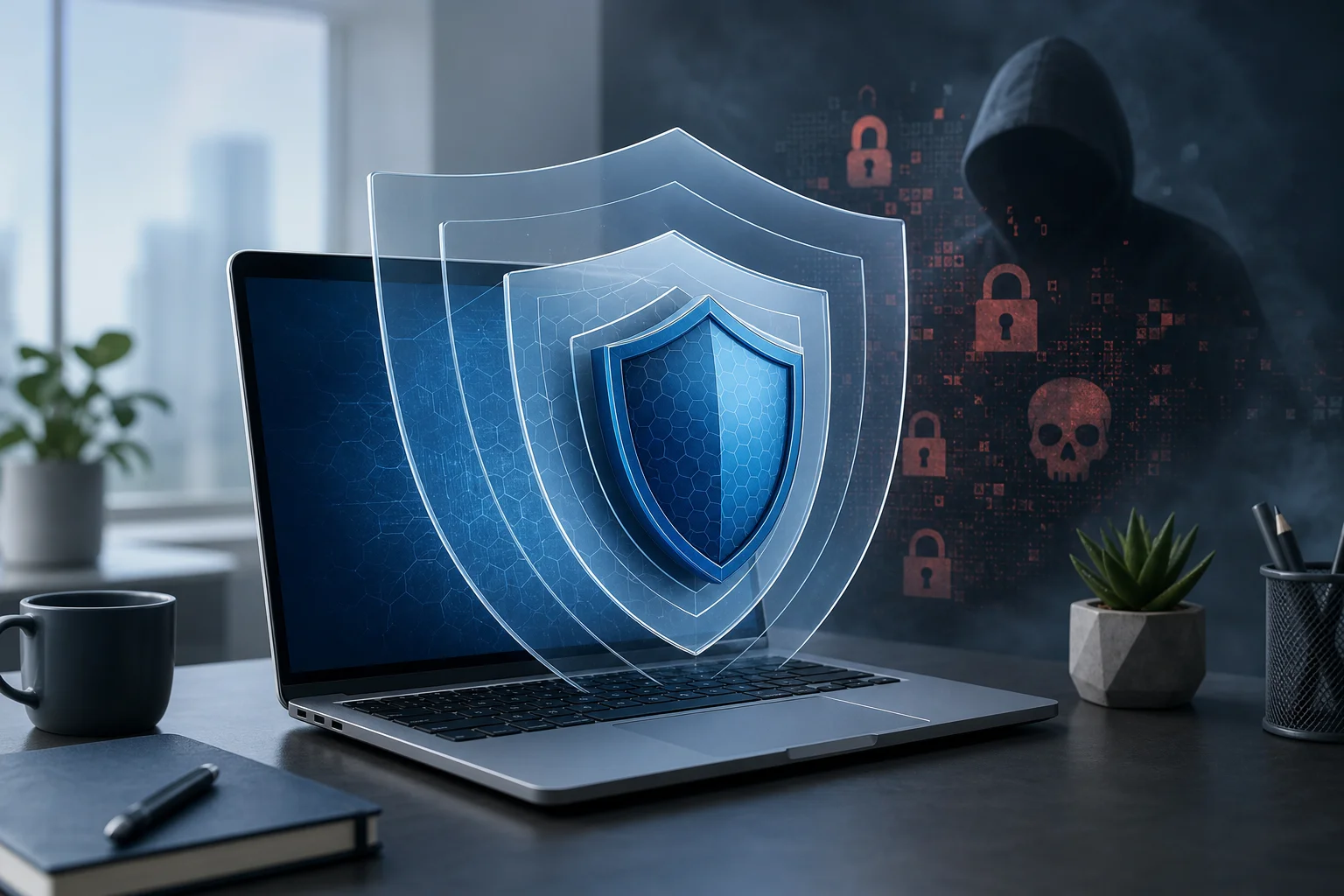
What is ransomware and how does it infect devices?
Ransomware is malware that encrypts files or locks a system and then displays a ransom demand. Attackers promise to provide the decryption key after payment, but there are no guarantees. Even if the key is indeed sent, the data may be corrupted, and the organization may be attacked again.
Typically, infection does not happen “on its own.” There is usually a specific entry point: an email with an attachment, a link to a fake website, a vulnerability in outdated software, a weak password for remote desktop access, or launching pirated software. Understanding these scenarios helps build defenses without unnecessary panic.
Main infection channels
In practice, ransomware most often infiltrates systems through the following channels:
- phishing emails with malicious attachments or links;
- documents with macros, scripts, and password-protected archives;
- hacked accounts and weak passwords;
- unprotected RDP, VPN, or admin panels;
- vulnerabilities in operating systems, browsers, office suites, and servers;
- pirated software, “activators,” keygens, and dubious builds;
- infected flash drives and network folders with broad access rights;
- compromise of a supplier or remote contractor.
It is important to consider that the attack may be manual. In this case, the attacker first secures themselves in the network, studies the infrastructure, escalates privileges, disables protections, and only then initiates encryption. Therefore, prevention must include not just protection for individual computers but also account, network access, and backup control.
A short protection plan against ransomware
If you need a quick checklist, start with these actions. They address the most common infection causes and help recover without paying a ransom.
- Set up backups according to the 3-2-1 rule.
- Regularly update operating systems, browsers, office applications, and server software.
- Enable reliable endpoint protection: antivirus, EDR, or built-in OS tools.
- Limit user rights and avoid working constantly as an administrator.
- Protect email from phishing, macro attachments, and suspicious links.
- Close open RDP access from the internet or move access behind a VPN with MFA.
- Use unique complex passwords and multi-factor authentication.
- Segment the network and limit access to shared folders.
- Train employees to recognize suspicious emails and requests.
- Prepare a response plan: who to notify, what to disable, where to look for backups.
Such a set of measures does not guarantee absolute security. However, it significantly complicates an attack and reduces damage if an infection occurs.
Backups as the main data protection
Backups are the last line of defense. If files are encrypted, and clean copies are available, the company or user can recover without paying a ransom. But backups must be organized correctly. A regular copy on a connected network drive can be encrypted along with other files.
Use the 3-2-1 rule
The classic 3-2-1 rule looks like this:
- 3 copies of data: one working version and at least two backups;
- 2 different types of media or storage: for example, local NAS and cloud storage;
- 1 copy off the main infrastructure: an offline disk, immutable object storage, or remote site.
To protect against ransomware, immutable backups are particularly useful. These are copies that cannot be altered or deleted for a set period. In clouds, this function is often referred to as object lock, immutability, or retention lock. In a corporate environment, it should be enabled for critical data.
Check recovery, not just the creation of copies
A common mistake among organizations is to assume that having a backup job already means security. In reality, it’s important to regularly conduct recovery tests. A copy may be incomplete, corrupted, outdated, or inaccessible due to incorrect credentials.
The minimum order of verification:
- Select a few critical files, databases, or virtual machines.
- Restore them to a test environment without affecting the working system.
- Check data integrity and application launch.
- Record the recovery time.
- Update the instructions if errors are found.
For home users, checking is simpler: open several files from the backup, ensure that photos, documents, and archives are readable, and then disconnect the external disk from the computer.
Updates and vulnerability patching
Updates close vulnerabilities that can be exploited for remote infection. The longer a system runs without patches, the higher the risk that a known vulnerability will be used against it. This applies not only to Windows, macOS, or Linux, but also to browsers, extensions, office suites, archivers, VPN gateways, CMS, database servers, and network equipment.
What to prioritize for updates
Prioritization should be based on risk. First, update:
- operating systems of workstations and servers;
- browsers and email clients;
- Microsoft Office, LibreOffice, and PDF viewers;
- VPN, RDP gateways, firewalls, and routers;
- hypervisors and virtualization platforms;
- backup systems;
- public web applications, CMS, and plugins;
- Java, .NET, Python, Node.js, and other runtime components, if used.
In a business environment, maintaining an asset register is useful. It’s impossible to update effectively what no one knows about. Even a simple table with a list of servers, software versions, and responsible persons is better than having no accounting.
How to update safely
For home devices, it’s usually enough to enable automatic updates. For organizations, the approach should be more managed: a testing group, maintenance windows, backups before critical updates, and monitoring after installation.
At the same time, patches should not be indefinitely postponed due to the fear of “breaking something.” Vulnerable VPN gateways, old email servers, and public control panels often become entry points for ransomware. The balance is this: first test, then quickly deploy on critical systems.
Email and browser protection
Phishing remains one of the most convenient ways to deliver malware. An email can appear as an invoice, act, notification from a delivery service, resume, request from a manager, or message from a bank. Sometimes attackers copy the style of a real counterparty and use similar domains.
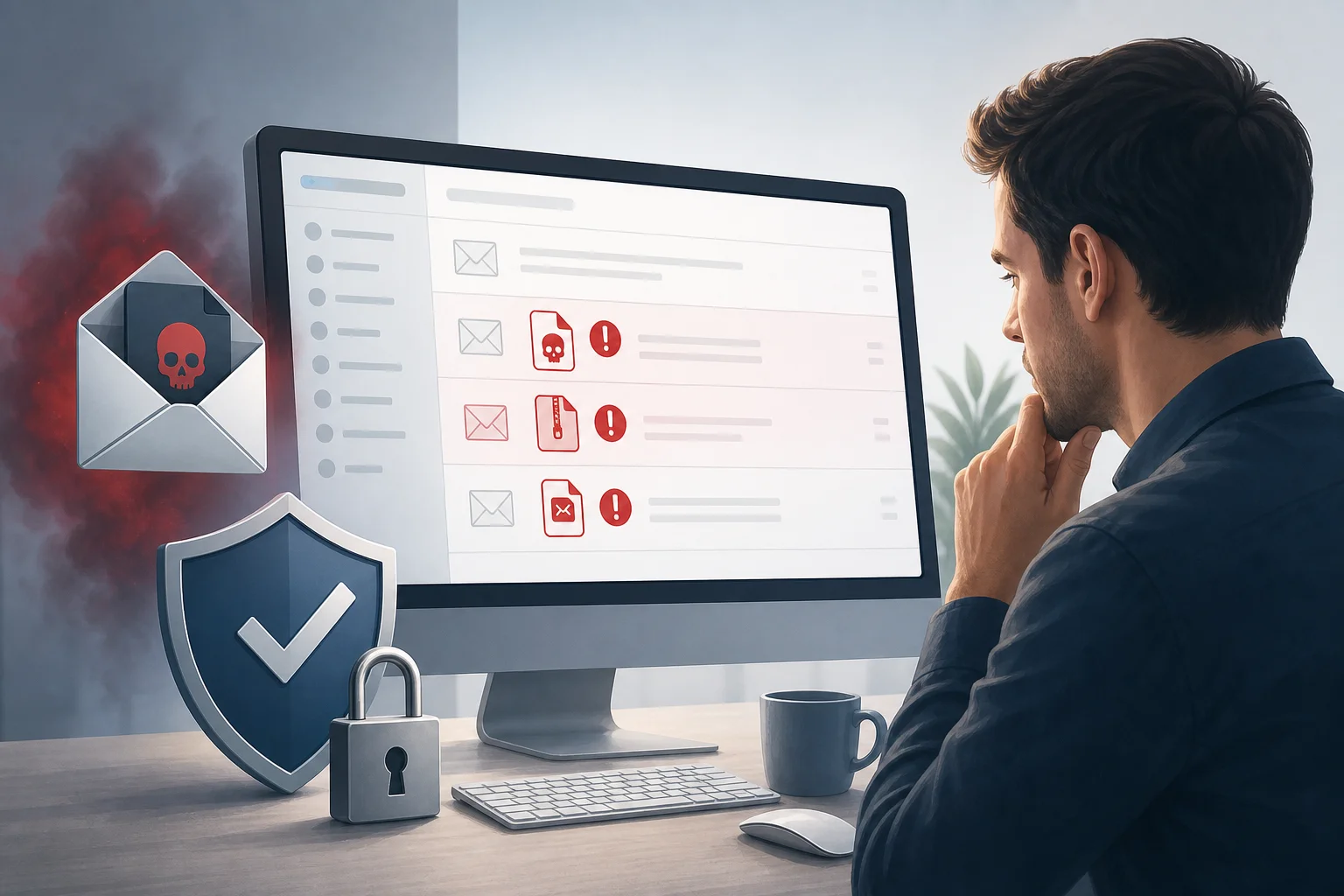
How to recognize a phishing email
Pay attention to risk signs:
- an unexpected file or link, especially if the sender is rushing;
- an archive with a password specified in the email;
- a request to enable macros or “allow editing”;
- the sender's address resembles the real one but contains extra characters;
- the text pressures fear, urgency, or the threat of fines;
- the link leads to a domain that does not match the official one;
- the attachment has a double extension, such as
invoice.pdf.exe; - the email comes from a familiar person but is written in an unusual style.
If in doubt, it’s better to contact the sender through another channel: call, message in a messenger, or create a new email to the known address. Do not reply directly to a suspicious email, as the address may be spoofed.
Settings that reduce the risk of infection via email
For organizations, useful technical measures include:
- filtering attachments by file types;
- blocking executable files in archives;
- checking links and attachments in a sandbox;
- setting up SPF, DKIM, and DMARC for the domain;
- prohibiting macros from the internet;
- providing warnings about emails from external senders;
- creating specific rules for financial documents and payment requests.
For personal email, there are also simple steps. Use a modern email service, enable two-factor authentication, do not open suspicious attachments, and do not enter a password after clicking a link in an email. It is better to open the site in a browser by using a bookmark or manually typed address.
Access rights and account control
Ransomware typically encrypts only those files that the running process has access to. If a user has rights to all network folders, the damage will be much greater. Therefore, the principle of least privilege is one of the most important methods of protection against ransomware.
Do not work as an administrator constantly
Everyday accounts should not have admin rights. Administrative rights are needed only for installing software, changing system settings, and maintenance. It’s better to use a separate account for these tasks.
In companies, roles should be divided:
- regular users — access only to their work data;
- local administrators — limited and upon request;
- domain administrators — only for domain administration tasks;
- service accounts — with minimal permissions and no interactive login;
- contractor accounts — with a limited lifespan.
This approach reduces the likelihood that one infected workstation will lead to the encryption of the entire network.
Enable multi-factor authentication
MFA protects accounts even if a password is leaked. It is especially important to enable multi-factor authentication for:
- email;
- VPN;
- cloud storage;
- admin panels;
- backup systems;
- administrator accounts;
- contractor remote access.
It’s better to use authentication apps, hardware keys, or push confirmations with protection against exhaustion attacks. SMS is better than having no second factor, but for critical accounts, more resilient methods are preferable.
Secure remote access
Open RDP to the internet is a common cause of compromise. Attackers scan addresses, guess passwords, use stolen credentials, or attack vulnerabilities. Once logged in, they can disable protections, study the network, and manually launch ransomware.
How to protect RDP, VPN, and admin panels
Use the following order:
- Remove direct access to RDP from the internet.
- Allow connections only through VPN or a secure gateway.
- Enable MFA for all remote logins.
- Limit access by IP if possible.
- Configure lockout after multiple failed login attempts.
- Use complex unique passwords or key authentication.
- Maintain login logs and regularly check for anomalies.
- Close accounts of former employees and contractors immediately after their work ends.
If remote server administration is used, create separate admin accounts. Do not use a single common login for the entire team. Otherwise, in the event of an incident, it will be difficult to determine who performed actions and when.
Protective software, EDR, and built-in system features
Antivirus should not be the only line of defense, but it is necessary. Modern protection tools scan files, process behavior, network connections, scripts, and attempts for mass data modification. In a corporate environment, EDR helps detect suspicious activities: launching PowerShell with dangerous parameters, disabling protection services, brute-forcing accounts, deleting shadow copies.
Which features should be enabled
For workstations and servers, the following features are useful:
- real-time protection;
- cloud reputation checks for files;
- script launch control;
- exploitation protection;
- folder access control;
- mass file change detection;
- prohibition of disabling protection without administrator approval;
- centralized notifications about security events.
In Windows, it’s worth paying attention to built-in mechanisms such as Microsoft Defender, Controlled Folder Access, SmartScreen, BitLocker, AppLocker, or Windows Defender Application Control. In macOS and Linux, it is also important to use native updates, permission control, logging, and verified protection tools.
Do not disable protection for convenience
Ransomware often attempts to disable antivirus, delete backups, and stop security services. Therefore, users should not be able to disable protection without reason. If a program interferes with work, it’s better to configure exceptions in a targeted manner after analysis, rather than to turn everything off completely.
Exceptions in antivirus should be minimal. Do not add the entire downloads folder, email attachments, network drives, or directories where users can write files to exceptions.
Network segmentation and protection of shared folders
If all devices are on one flat network, it is easier for ransomware to spread. Segmentation limits movement within the infrastructure. Even if one workstation is infected, it will be harder for malicious software to reach servers, backup storage, and critical databases.
What to segment in the network
At minimum, segment the following:
- employee workstations;
- servers with critical data;
- accounting and financial systems;
- backup systems;
- guest Wi-Fi;
- Internet of Things devices;
- testing and production environments;
- admin workstations.
Access between segments should only be allowed through necessary ports and only to users or services that genuinely need it. For instance, an accountant does not need access to the development server, and guest Wi-Fi should not see internal file resources.
How to set up shared folders
Shared folders often become a primary target for encryption. Therefore, rights should be granted by groups rather than each user manually. Remove outdated permissions and regularly check who has write access.
Good practices include:
- giving write access only to those who genuinely edit files;
- separating archived data from current working folders;
- enabling change logging for critical directories;
- using quotas and anomalous behavior control;
- not connecting backups as ordinary network drives;
- limiting access for service accounts.
If a user only needs to read instructions or templates, they do not need modification rights. This simple rule significantly reduces potential damage.
Safe handling of files, flash drives, and software
Many infections begin with common actions: downloading files, opening archives, installing a “needed utility,” connecting flash drives, or launching unknown installers. Therefore, digital hygiene is as important as technical settings.
Check software sources
Only download applications from official websites, trusted stores, or internal corporate portals. Avoid pirated software, “activators,” hacked versions, and builds from random forums. Such files often disguise themselves as useful tools but may contain Trojans, stealers, and ransomware.
Before installation, ask yourself three questions:
- Is this program necessary for work?
- Do I trust the source?
- Does the file have a digital signature or reputation?
If the answer is negative, it’s better not to launch the installer. In a company, installing new software should go through a request or an approved application catalog.
Limit auto-run and use of USB drives
Flash drives can transfer malicious files between devices. For a personal computer, simply disabling auto-run and scanning drives with antivirus is sufficient. In an organization, it’s advisable to implement a policy: only allow trusted USB drives, prohibit unknown devices, and maintain a record of storage with important data.
If employees exchange files with contractors, it’s better to use a secure cloud portal or corporate storage rather than random archives in emails and uncontrolled flash drives.
Comparison of ransomware protection measures
Below is a brief table that helps prioritize actions. It is useful if you need to quickly understand where to start.
| Protection measure | What it helps against | What’s important to check |
|---|---|---|
| 3-2-1 backups | Data loss after encryption | There is an offline or immutable copy, recovery has been tested |
| Software updates | Exploitation of known vulnerabilities | Patches installed on OS, browsers, VPN, servers, and applications |
| MFA | Access with stolen password | Second factor enabled for email, VPN, admins, and cloud |
| Rights limitation | Mass encryption of network folders | Users do not have excessive write permissions |
| Email protection | Phishing and malicious attachments | Macros from the internet are blocked, attachments are filtered |
| RDP and VPN protection | Remote access compromise | No open RDP, MFA and logging enabled |
| EDR or antivirus | Launch of malicious processes | Protection is enabled, events are centrally tracked |
| Network segmentation | Attack spread within the network | Critical servers are isolated, access is limited |
| Employee training | Mistakes when handling emails and files | Clear instructions and regular knowledge checks |
Start with backups, updates, MFA, and email protection. Then move on to segmentation, EDR, application control, and finer rights adjustments.
Step-by-step protection setup for home users
Home users do not need a complex corporate infrastructure. But basic measures are essential if important documents, photos, study materials, or work files are on the computer.
- Enable automatic updates. Update the OS, browser, office applications, and messengers.
- Set up backups. Use an external hard drive and cloud storage. Disconnect the external drive after copying.
- Check the antivirus. Ensure that real-time protection is enabled and databases are being updated.
- Do not use pirated software. Activators, unknown builds, and “free” versions of paid software are especially dangerous.
- Enable two-factor authentication. Start with email since it can be used to recover access to other services.
- Open attachments cautiously. Do not run files from unexpected emails or password-protected archives.
- Create a separate account without admin rights. Use it for everyday work.
- Disable auto-run for external drives. Check flash drives before opening files.
- Store important passwords in a password manager. Never repeat one password across different sites.
- Write down a recovery plan. Where are the copies, what’s the cloud password, how to reinstall the system.
These steps take little time but significantly enhance resistance to ransomware infections.
Step-by-step protection setup for small businesses
Small businesses often feel that they are not of interest to attackers. In practice, attacks can be automated, and the consequences can be serious: sales halts, inaccessibility of accounting, loss of customer documents, employee downtime. Therefore, a simple but systematic plan is needed.
- Assign a responsible person for security. This could be an in-house specialist, external administrator, or process owner.
- Make a list of critical data. Accounting, CRM, customer databases, contracts, production files, email.
- Set up backups with an immutable copy. Check recovery regularly, at least after significant changes in infrastructure.
- Enable MFA for email, VPN, and administrators. Do not delay this step.
- Close direct RDP access. Use VPN, IP restrictions, and login logging.
- Update servers and network equipment. Especially public services and VPNs.
- Limit employee rights. Access to folders should correspond to roles, not be granted “just in case.”
- Set up email protection. Block dangerous attachments, macros, and fake domains.
- Implement centralized antivirus or EDR. It is important to see the status of all devices.
- Conduct a brief training. Explain to employees where to forward suspicious emails and what not to open.
- Prepare an incident response plan. Who isolates devices, who checks backups, who communicates with management and clients.
The main thing is not to try to do everything perfectly in one day. It’s better to implement measures by priority and track progress.
What to do if infection is suspected
If you notice strange file extensions, a ransom note, a sharp slowdown of the system, mass renaming of documents, or security alerts, act quickly. The goal is to stop the spread and preserve traces for analysis.

Initial actions
- Disconnect the device from the network. Unplug the Ethernet cable, turn off Wi-Fi, or isolate the port on the switch.
- Do not shut down the computer unless necessary. Sometimes memory may contain useful data for investigation. If encryption is actively happening and cannot be stopped, the solution depends on the situation.
- Do not connect backup drives. Otherwise, they may also be encrypted.
- Notify the responsible person. In the company, this is the IT administrator, security service, or external contractor.
- Record the symptoms. Photograph the ransom message, note the time, device name, user, and recent actions.
- Do not rush to pay the ransom. Payment does not guarantee recovery and may lead to repeated demands.
- Check other devices. Look for similar signs, suspicious logins, and new accounts.
- Only restore from clean copies. Before restoring, ensure that the source of the infection has been eliminated.
After isolating the device, a home user should consult a specialist or use verified resources to determine the ransomware family. Sometimes, free decryptors exist for older variants, but running random “decryptors” from the internet is risky.
What not to do
Do not mass rename encrypted files or delete the ransom note before analysis. Do not format the disk if there is a chance of recovery or investigation. Do not enter credentials on the infected device. Do not connect cloud folders, external drives, and phones to it.
If the incident happens in a company, it is important to preserve logs: login events, network logs, antivirus logs, VPN, email gateways, and backup systems. They will help identify the entry point and not restore a vulnerable configuration again.
Frequent errors that increase risk
Even with protective tools, errors in processes can lead to infections. The most dangerous ones tend to repeat frequently.
One backup on a connected drive
If the backup drive is constantly connected to the computer or server, ransomware can reach it. Copies should be isolated: offline, in a separate segment, with different credentials, or with immutability mode.
One password for different services
Reusing passwords makes attacks easier. A leaked password from an old site can grant access to email, cloud, or VPN. Use a password manager and unique passwords for each service.
Excess rights to network folders
“Write access for all” is convenient but dangerous. If one computer is infected, the malicious program can encrypt shared documents for the entire department. Rights should be reviewed regularly.
Postponed updates without deadline
Sometimes updates are postponed due to busy schedules or the fear of incompatibility. But if a public service remains vulnerable for months, the risk increases. A clear patch installation process is needed.
Lack of an incident response plan
During an incident, people get nervous and make chaotic decisions. Having a pre-prepared instruction saves time: who isolates devices, who checks backups, who communicates with management and clients.
FAQ on avoiding ransomware infection
Is it possible to be completely protected from ransomware?
It is impossible to completely eliminate the risk. However, it is possible to significantly reduce the likelihood of infection and prepare for recovery. For this, backups, updates, MFA, rights limitation, email protection, and remote access control are needed.
Will antivirus help against ransomware?
Antivirus helps detect many threats, but it does not replace other measures. If a user runs a malicious file themselves or an attacker accesses through a stolen password, one layer of protection may not be enough. Use antivirus alongside backups, updates, and MFA.
Should I pay the ransom for file decryption?
Paying the ransom is risky. There is no guarantee that you will receive a working key or that attackers won’t demand money again. First, isolate devices, check backups, identify the type of ransomware, and consult experts.
Will cloud storage protect against ransomware?
Cloud can help if it has version history, recycle bin, and protection against mass deletions. But a synchronized folder can also receive encrypted versions of files. Therefore, it is important to enable versioning and have a separate backup.
Which files are most often encrypted?
Ransomware typically targets documents, spreadsheets, presentations, databases, photographs, archives, projects, and files on network drives. Some variants also attempt to stop databases and encrypt virtual machines.
How to tell if an email is dangerous?
A dangerous email often calls for urgent action, contains an unexpected attachment, asks to enable macros, or leads to a strange domain. If the email concerns payment, fines, delivery, or a request from management, check it through another channel.
What is the most important thing to do today?
If time is short, do three things: check backups, enable MFA for email, and update the system. Then close direct remote access and limit rights to shared folders.
Practical checklist for the week
To avoid overwhelming yourself, spread tasks over several days.
Day 1: Backups
Check which data is critical. Set up copying. Ensure that at least one copy is inaccessible to regular users and is not constantly connected.
Day 2: Updates
Update the OS, browsers, office applications, VPN, and network equipment. Remove unused programs.
Day 3: Accounts
Enable MFA. Change reused passwords. Delete old accounts. Separate regular and administrative rights.
Day 4: Email and files
Check filtering settings. Prohibit macros from the internet. Explain to users how to report suspicious emails.
Day 5: Remote access
Close open RDP. Set up VPN, MFA, IP restrictions, and login logging.
Day 6: Network folders
Check write permissions. Remove “write access for all.” Segment important directories and enable change logging.
Day 7: Incident response plan
Write down a short instruction: who to notify, how to isolate the device, where copies are located, who makes recovery decisions. Conduct a trial test.
Conclusion
To avoid ransomware infection, do not rely on one measure. Set up backups, regularly update systems, protect email, enable MFA, limit privileges, and close weak spots in remote access. Start today by checking backups and enabling two-factor authentication, and then systematically strengthen the other layers of protection.